This Script helps you with the following:
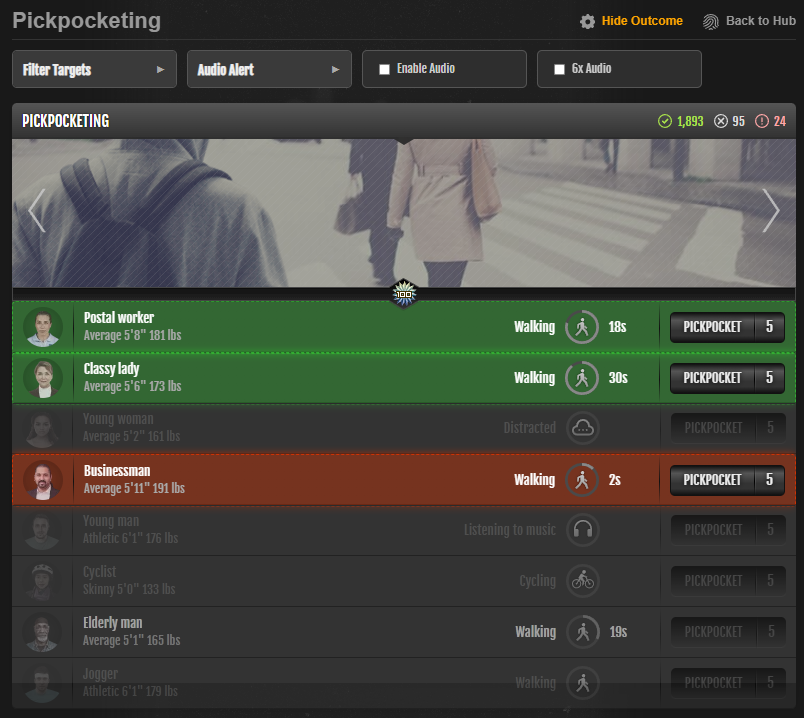
- Filters Targets: Adds a box to check/uncheck target types. Unchecked targets are dimmed and disabled. (Filters are saved).
- Highlights Targets: Selected targets get a colored highlight (Green -> Orange -> Red) based on remaining time.
- Audio Alerts: Plays a sound for selected targets when they appear. Requires enabling a master "Enable Audio" switch each session. Specific target alerts and a "6x Audio" option can be configured and are saved.
This is how it looks like:
Detailed explanation of how this script works:
Main Goal:
This script runs on the Torn City pickpocketing page and helps you more easily identify and manage the targets you want to pickpocket.
Key Features:
-
Target Filtering:
- It adds a box labeled "Filter Targets" above the list of potential victims.
- Inside this box, you can check or uncheck different types of targets (like 'Businessman', 'Jogger', 'Student', etc.).
- Any target type you uncheck will appear greyed out and slightly faded in the main list, and their "Pickpocket" button will be disabled. This helps you ignore targets you're not interested in.
- Your filter choices are automatically saved, so they'll be remembered the next time you visit the page.
- This box can be collapsed by clicking its header to save space, and whether it's collapsed or expanded is also saved.
-
Time-Based Highlighting:
- Targets that match your filter selections (and aren't already gone) will be visually highlighted with a colored background and border.
- The highlight color changes based on how much time is left for that target:
- Green: More than 10 seconds remaining.
- Orange-to-Red Gradient: 10 seconds or less remaining (getting redder as time runs out). This helps you quickly see which targets are about to disappear.
-
Audio Alerts:
- Master "Enable Audio" Box: A small box with a single checkbox labeled "Enable Audio" appears next to the filter box. You must check this box once per session if you want any sound alerts to work. This is needed because browsers block automatic sound otherwise. This setting is not saved and resets when you reload.
- "Audio Alert" Box: This box lists only the target types you currently have checked in the "Filter Targets" box. You can check/uncheck specific targets here to decide which ones should trigger a sound alert. Your choices here are saved. This box is also collapsible.
- "6x Audio" Box: Another small box with a checkbox labeled "6x Audio". If you check this (and master audio is enabled), the sound alert will play 6 times quickly instead of just once. This setting is saved.
- How Sound Works: A sound alert will only play if ALL of these conditions are met:
- The target appears on the list.
- The target matches your selections in the "Filter Targets" box.
- The target has its specific checkbox checked in the "Audio Alert" box.
- The master "Enable Audio" checkbox is checked.
-
Layout:
- All the control boxes (Filter Targets, Audio Alert, Enable Audio, 6x Audio) appear in a row above the actual list of pickpocketing targets.
- They are designed to fit side-by-side on most screens.
UPDATE: Now only works if the pickpocketing window is focused. You actually have to view the page to get audio alerts now.