Work Stat Calculator
A little pet project I made after looking at the calculations for Company Effectiveness, figured I should probably share it in case someone else is curious .
The spreadsheet shows expected efficiency and work stat gain for every position in every company/city job.
I've also added all the specials, however those aren't the main focus of this spreadsheet.
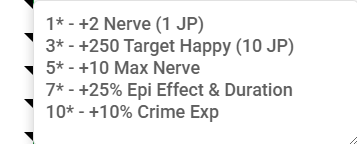
If you see a triangle to the left like in this paragraph, you can click it to expand for extra details.
And then click it again to collapse it
Links
Click here to directly copy it
or
How to use:
First you should enter your your current work stats in the "Work Stats"-tab. I've provided with three methods of doing so.
1. Copy/paste
Select and copy all your work stats from Torn
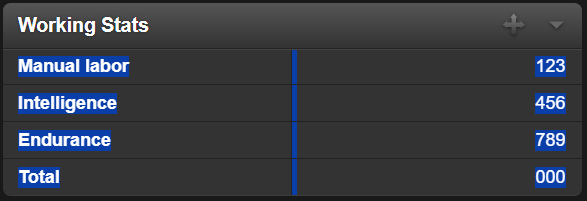
Paste into the A1 Cell in the "Work Stats"-tab
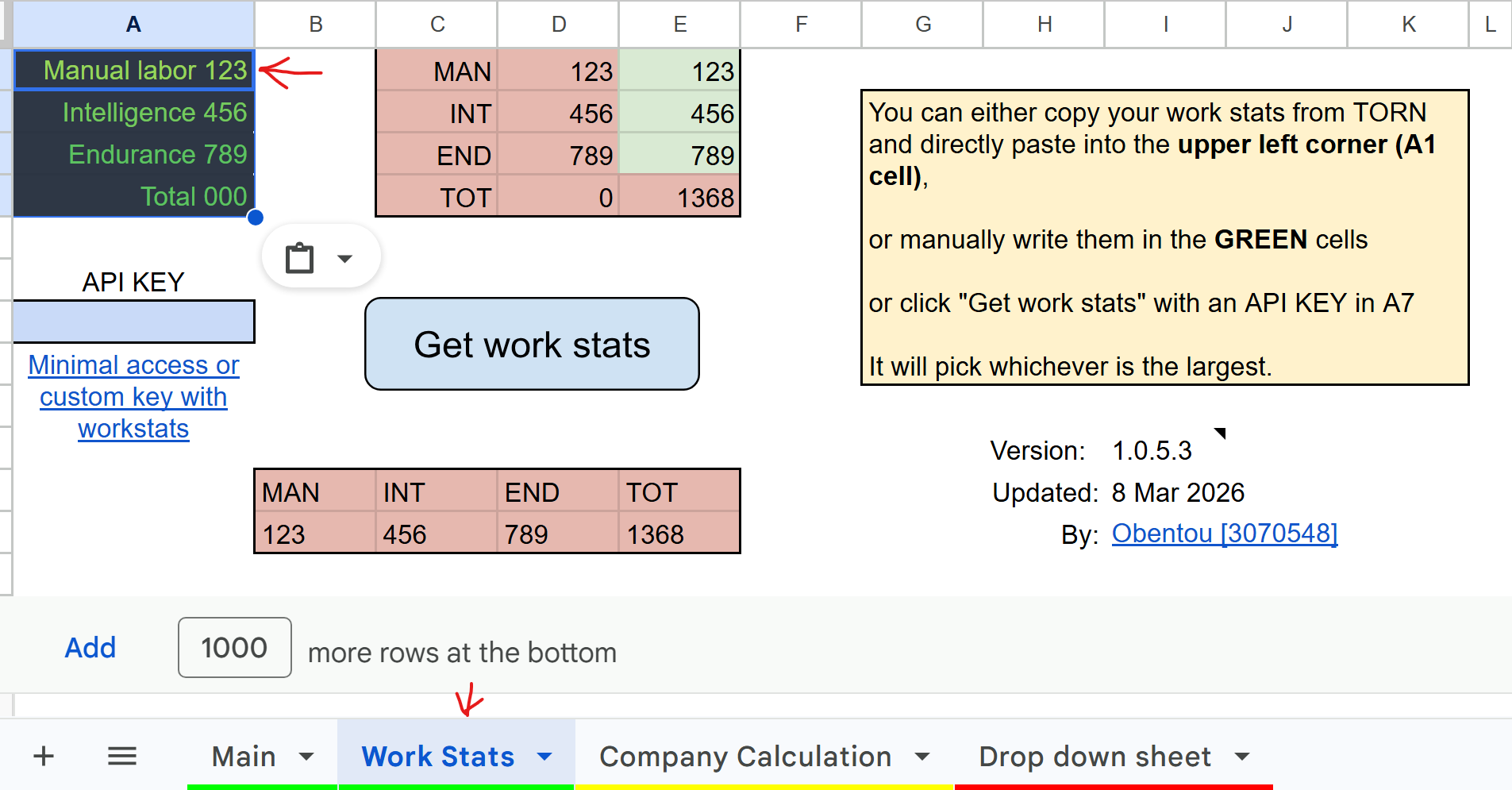
2. Manual entry
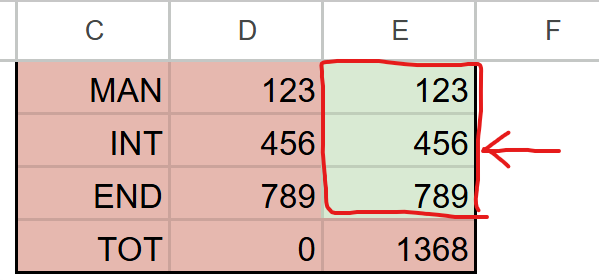
In the greens Cells E1 to E3 you can manually enter your enter whatever numbers you'd like, be it your own work stats, someone else's or something random.
3. API KEY and script
If you're feeling lazy or plan to check your progress often, you can use the provided script.
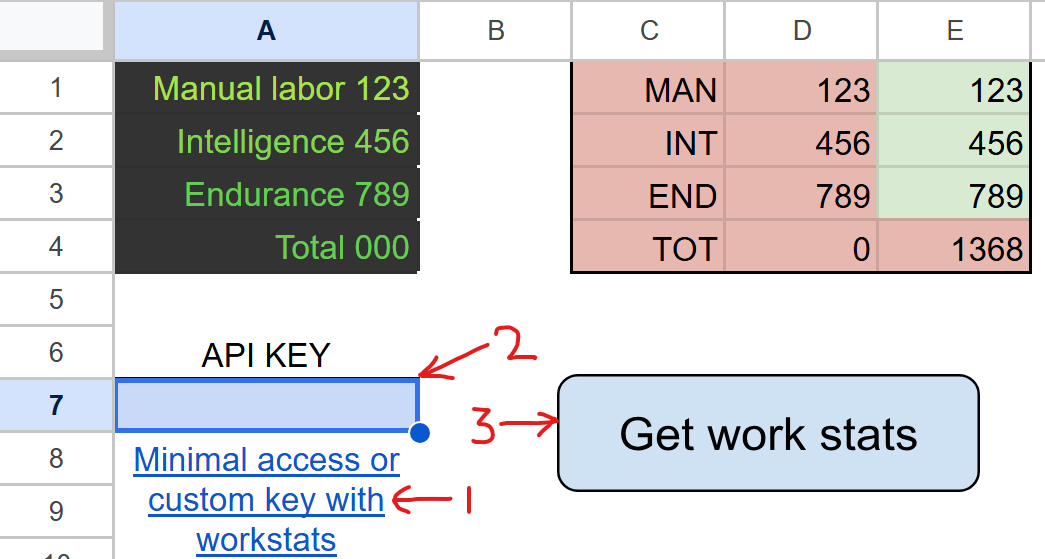
First grab a minimal access API key or create a new custom API key with the link provided in A8.
Second, paste your API key in A7
Third, click the blue button that says "Get work stats"
The script will fill in the green cells E1 to E3 with your current work stats.
Adjusting settings:
Now that you have your work stats you can start to tinker with the "Main"-tab. Hopefully it's rather self-explanatory, but here's a run down.
At the top you can find the settings:

Some of these settings will have a dropdown list of valid values, simply click the ⏷ symbol and a list like this will appear:
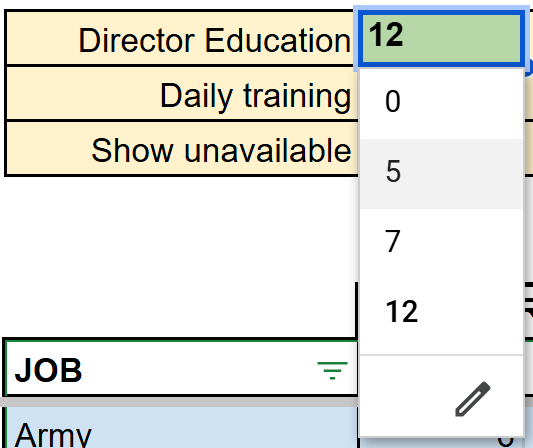
For "Daily training" any number above zero in cell C3 will do, simply enter the average amount of trains you'd get.
So 0,5 for every other day
Or 1 for every day
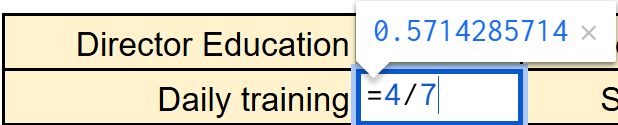
Or if you don't know the fraction, but know you get 4 a week, type =4/7
For "Show unavailable" and "Specials" there is a check mark box
☑ in C4 will show positions that are unavailable, this is only relevant to city jobs and directors.
☐ in C4 will show only the positions that are relevant to your provided work stats.
☑ in E4 will add average daily work stat gained from jobs/companies with specials that provide it.
☐ in E4 will show only the work stats gained passively (and optional daily trains provided in C3)
If you're interested in a specific work stat, you can use the drop down list in G4:
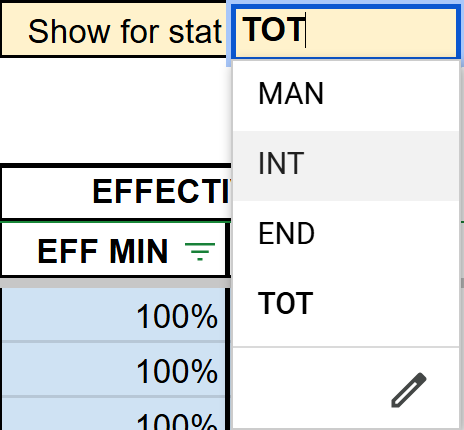
*At the moment of writing only TOT (Total) is able to show values with added work stats from specials. I can add it, just haven't been bothered to.
At the top right, you can keep an eye on a specific role:
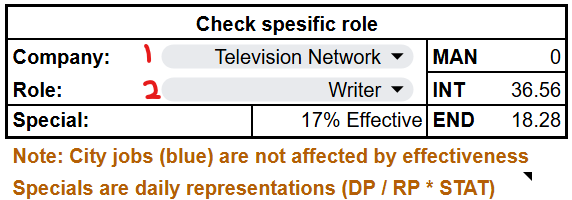
First, select a company type from the drop down list.
Second, after selecting a company the drop down list for role will be updated, simply select desired role.
Now you'll be able to see if the company has any specials that provide work stat, or you can keep an eye on how your effectiveness progresses, or what expected work stat gain will be.
Viewing the data
Now that everything is set up, you can check out the data.
There are two tabs that will show you varying amount of information.

1. Main
2. Company Calculation
"Main"-tab
This tab will shows the different companies/city jobs and the ranges of work stat gain and effectiveness.

- Here you can see Spreadsheet's filter feature, if you click on this symbol you get a window where you can sort, hide values by either clicking the check marks or using the "Filter by" feature, more on this later.
- MIN show the minimum work stat you gain from a position in that company/job.
- AVG show the average work stat you gain between all the positions in that company/job.
- MAX show the maximum work stat you gain from a position in that company/job.
- EFF MIN show the minimum effectiveness you have in a position in that company/job.
- EFF MAX show the maximum effectiveness you have in a position in that company/job.
- This is the column that the Notable specials are stored, if you want to search/filter for something specific, this is where you'll do that.
- The black triangle shows that there is a note in this cell, in the notes in this column you can view all the specials for that company/job. On PC hover over that cell and on your phone I think you have to tap on the cell.
- This is where notable specials are viewed. If a special shows up here, then it's either because it's good, interesting or the only special you can use Job Points (JP) on.
- If you're not interested in the specials, you can hide them by clicking the check mark box.

"Company Calculation"-tab
In this tab you'll see all the information and calculations regarding work stats and the different positions:
- Company types and ranks
- Specials that give work stats
- Work stat requirements
- Base work stat gain
- Effective work stat
- Effective work stat gain (or estimated work stat gain)
Spreadsheet filter feature
Quick introduction to the filter feature, not to be confused with Filter() function.
I love this feature when dealing with data sets in Spreadsheet.
When you click this button in a cell, you will open a filter window:

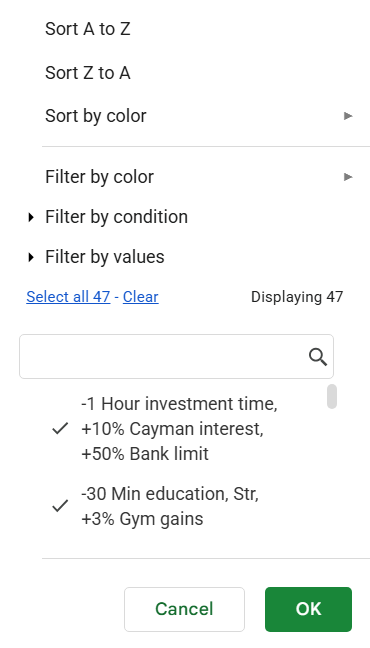
The two first two options are self explaining, it's to sort in ascending or descending order.
Next we have the three filters, these will hide certain rows to shrink the viewable data set.
You can see where a filter has been applied by this icon in the respective cell.

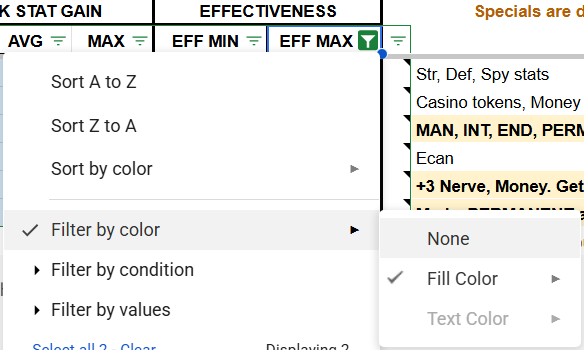
Filter by color
If you have color coded your rows like I have, you can for example view only the city jobs by filtering by light blue:
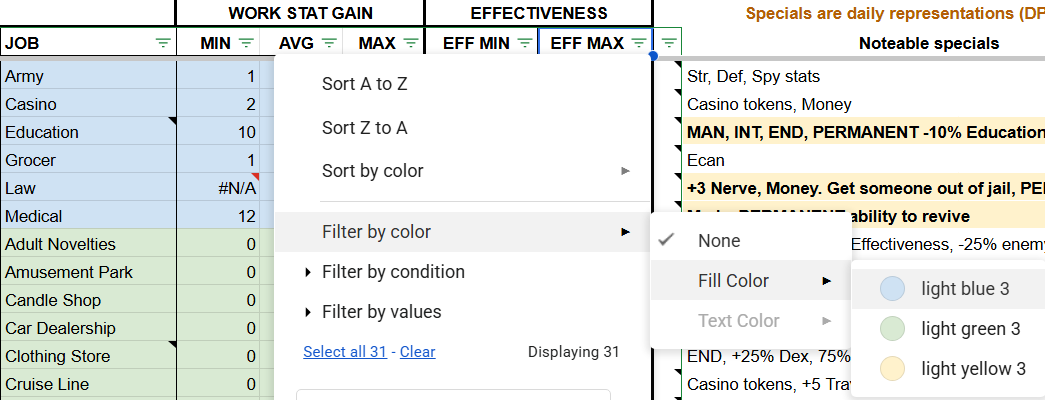
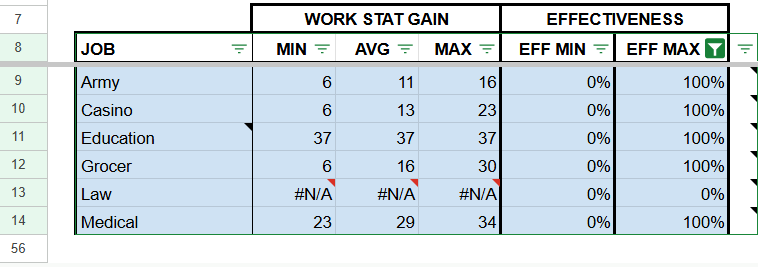
To remove Filter by color, you have to do the same, but select None:
Filter by condition
This one is a bit more advanced.
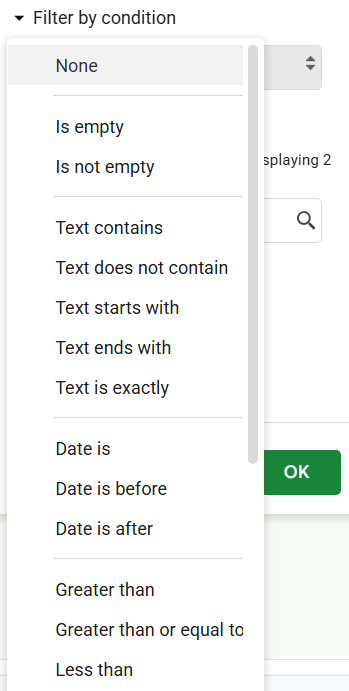
The most useful ones in this sheet are:
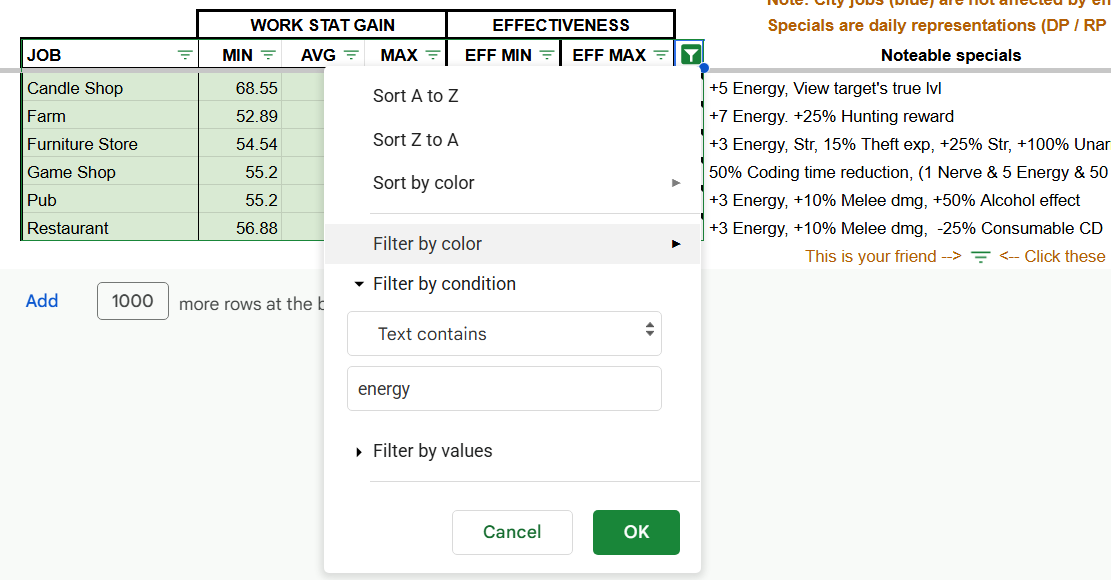
- "Text contains" - Say you want to see how you do in jobs that have an energy special, then you can use this example:
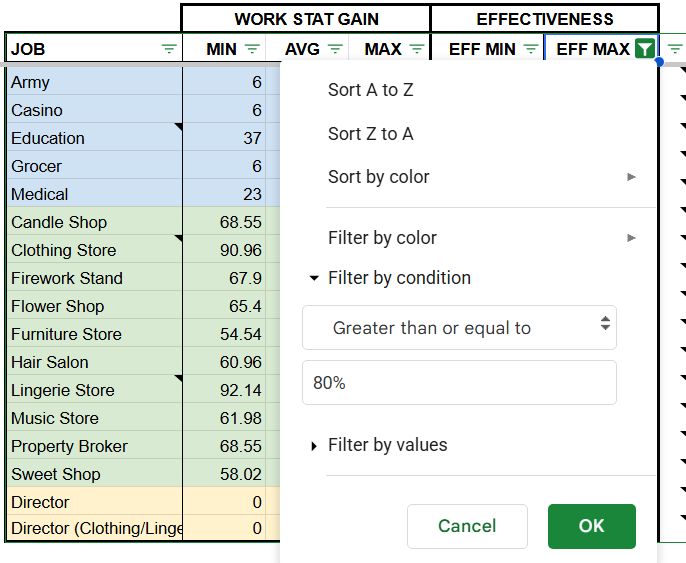
- "Greater than or equal to" - Say you're looking for something with room to grow, but not that much:
Note: As this column is in percentage you can either write "80%" or "0.8".
If you want to use filters for other spreadsheets, here is where you enable or disable it:

The script and API usage
First and foremost, the script is 100% optional. If you don't want to use it, then you don't need to input API key and use option 1 or 2 in "How to use".
If you want to view the script, here is where you can do so:
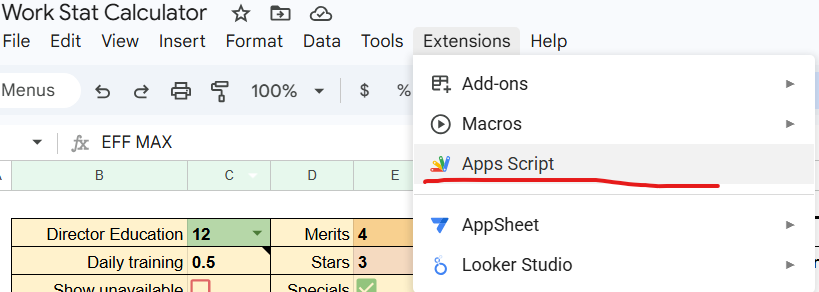
The only function for the script is to fetch your work stats and paste them for you in the sheet.
Activation
To active it, you first need to run it once by clicking the blue "Get work stats"-button on the "Work Stats"-tab and you'll get this pop up:
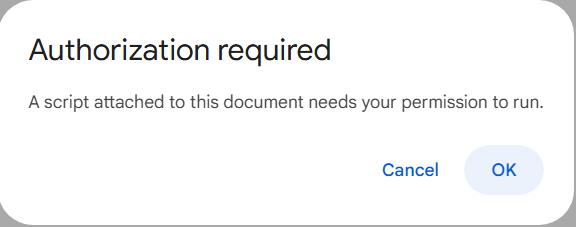
Click OK and you will get a pop up window:

Hit "Advanced" and then "Go to WorkstatCalculator (unsafe)"
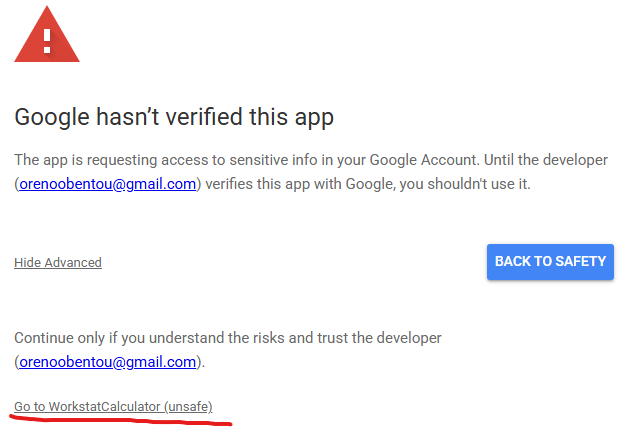
Scroll down in the new page and hit the check mark box for "Select all" and then "Continue"
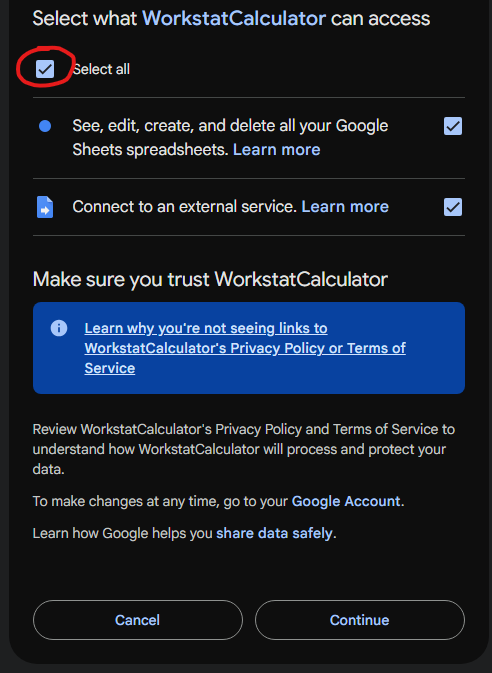
Now you should be free to hit that button and fetch your work stats.
Maybe I can do something with authorizing my Google App Scripts, but I haven't looked into it as I've mostly done it for my own sheets.
| Data Storage | Data Sharing | Purpose of Use | Key Storage & Sharing | Key Access Level |
| Only on the spreadsheet | Only those with access to the sheet | Non malicious statistical analysis | Stored on the spreadsheet (DO NOT share your sheet) |
Minimal Custom with workstats |
Known issues
- Specials isn't fully calculated in yet when viewing a specific work stat instead of TOT (total), currently only works with directors.
- Script can be optimized a bit, I know there is a faster way to write data to the sheet, just haven't bothered yet.
Changelog
- 1.0.5.4 - added show/hide feature to API KEY