Greetings all,
Figured it's about time to drop an API-driven spreadsheet I've worked on for a long while now.
If you want something added, or find something wrong - chat, mail, or hit me on Discord @drchrono
----
The sheet can be found here
This is a Google Sheets document, and the above link should bring you directly to the option of making your own copy.
Notes:
Mobile refreshing possible thanks to Omanpx, though you will still have to run the initial "setup" on a PC.
You should use a Full Access API key for this document.
Terms of Service can be found at the bottom of the Cover tab:
----
Gym Sheet
This utilizes the most recent formula for gym gains, and should have most (if not all) modifiers you'll run into during training.
There are separate checkbox toggles to import: your current stats; your faction's current steadfast; your max happy, property swimming pool, educations completed, faction energy drink voracity perks, and job perks.
You may uncheck these import checkboxes and add in your own data if wished. Color coding changes depending on if data is being imported or not, as well.

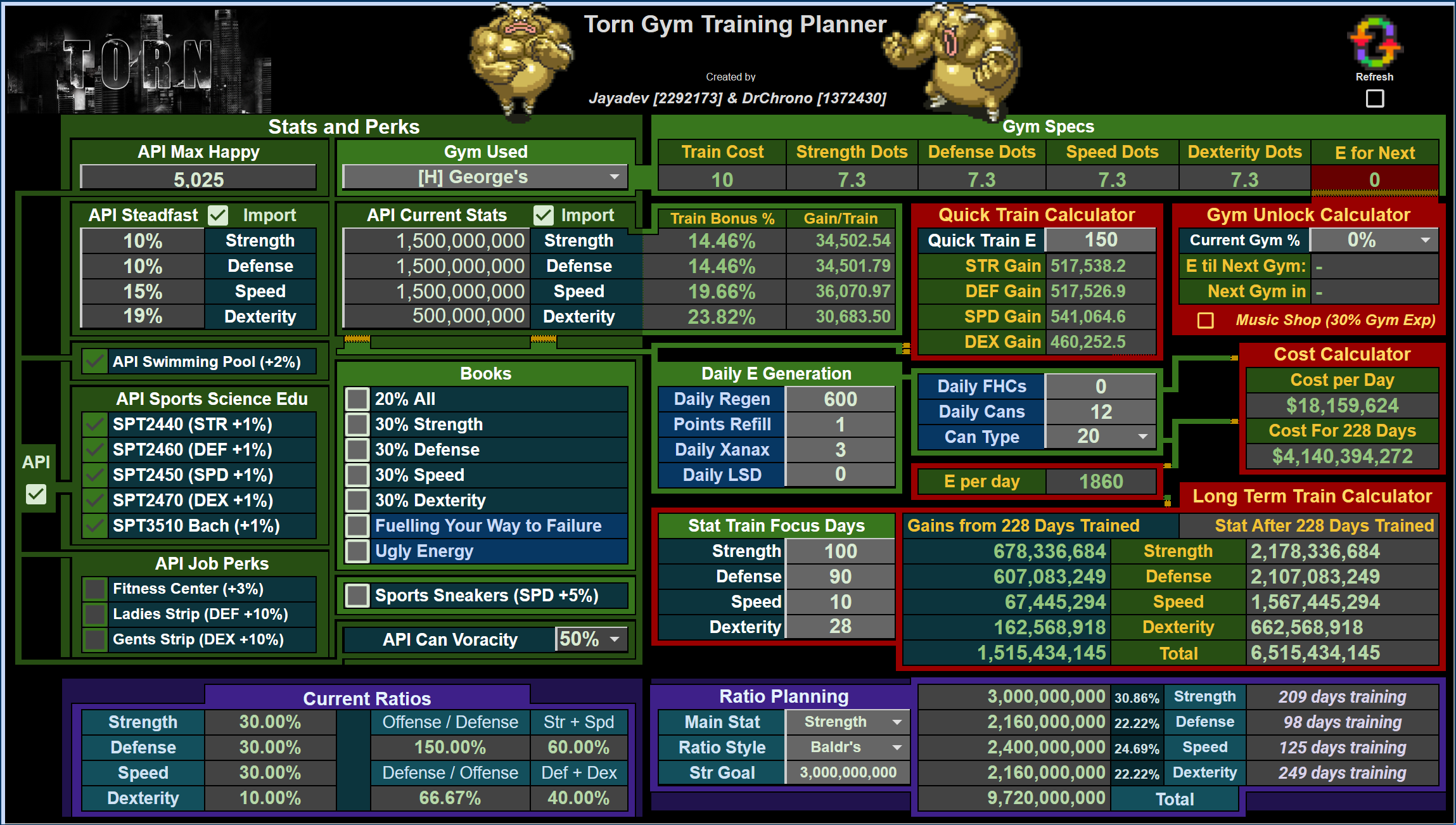
On this sheet, you can utilize the following sub-areas:
- Quick Train, with an amount of E up to 1000 (nice for Happy Jumps)
- Gym Unlocks, where you can add your current gym's % complete and, using your E per Day, estimate how many days you have left until your next gym unlocks
- Long Term Train Calculator, where your E & Items per Day can be iterated out up to 1096 days to show gains as well as costs
- Quick Ratios & Ratio Planning, where you can see your current breakdown between your stats as well as plan towards a goal that either conforms to Baldr, Hank, or your own Manual ratio to see your upper stat limits to train towards
(Please note that variance in modifiers & Torn itself will change your gains per day in ways this sheet cannot account for - all measurements should be considered estimates with best practices behind them)
----
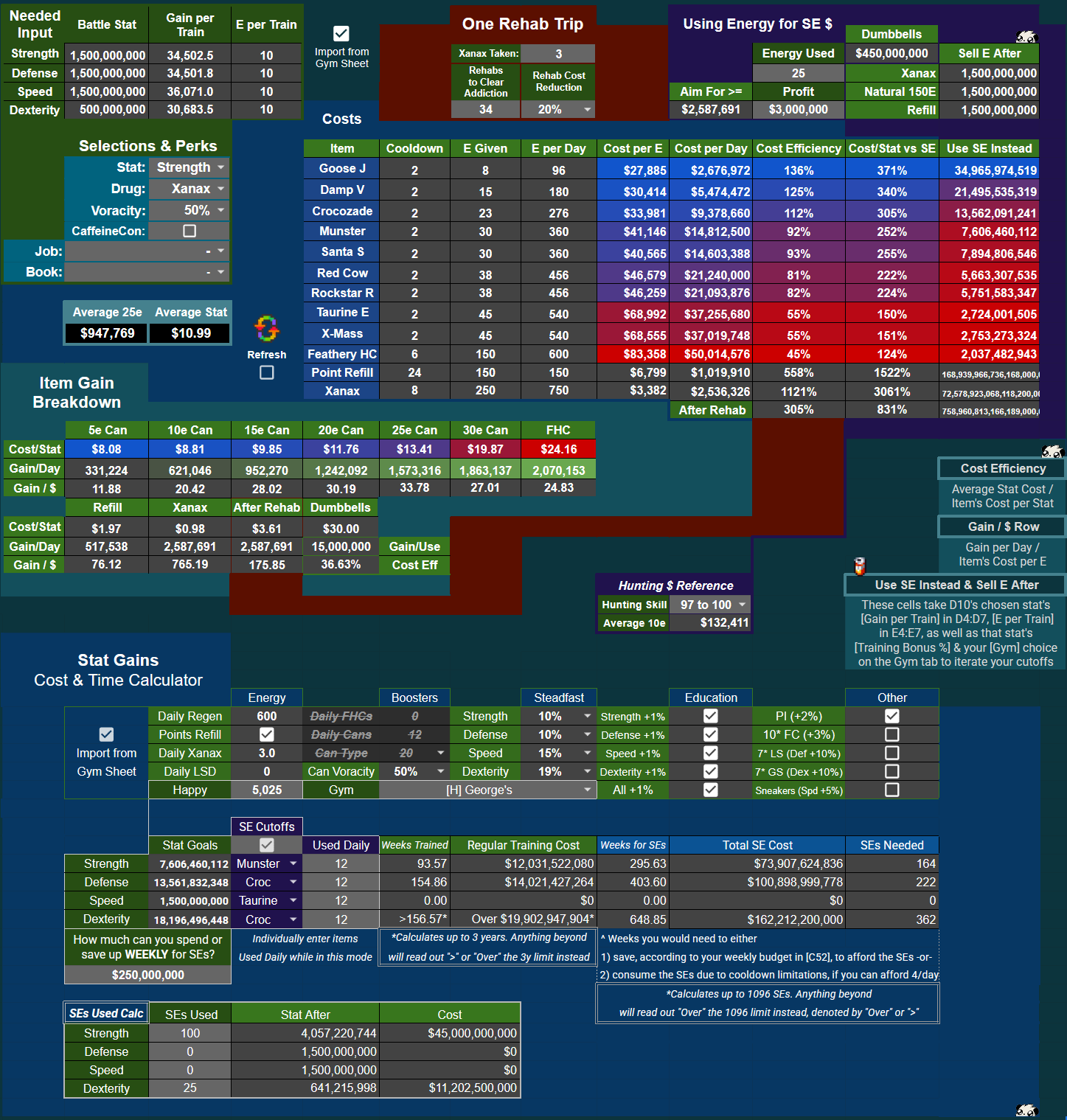
Energy Sheet
This has a checkbox to import your stats & training gain amounts from the Gym tab.
Outlines all Energy and Stat Gain items you might want to use, comparing their efficiency across multiple categories.
Determine the most cost efficient or gain efficient items, when rehab becomes prohibitively expensive, when to use stat enhancers instead of E Drinks/FHCs, and when to sell energy towards using SEs.
[Use SE Instead] and [Using Energy for SE $] areas utilize an iterative script to compare cost efficiencies until your inputs reach a threshold for when each action is fiscally wise to pursue.
Narrowing in on [One Rehab Trip] and [Using Energy for SE $]:
[image: file.garden]
For Rehab:
![[image: file.garden]](https://file.garden/ZdicIpzmo3pLm3pu/Companion%20Guide/CGEnergyTab02.png)
- As addiction has timed interactions with Natural Decay (subtracting 20 addiction points every day around 3:30tct), the sheet ships with the max addiction (with Tol) & Xanax for 1 day's use:
- 3 Xanax at max Toleration = 54 addiction points, minus 20 from Natural Decay = 34 addiction points from 3 Xanax each day. Adjust as you see fit, as 2.7 Xanax/day is more in line with normal usage
For Using Energy for SE $:
- This takes a variable amount of energy you use (say, 25e for a revive) as well as the profit from that action ($845,000 per revive) and looks at the stats you would have gained training that energy vs. the amount of stats you would gain from that profit's % of an SE to tell you when that amount of energy for that specific profit is worth pursuing
- For an easy "profit target", the [Aim for >=] cell gives you the minimum profit you'd want to make for your chosen stat's SE
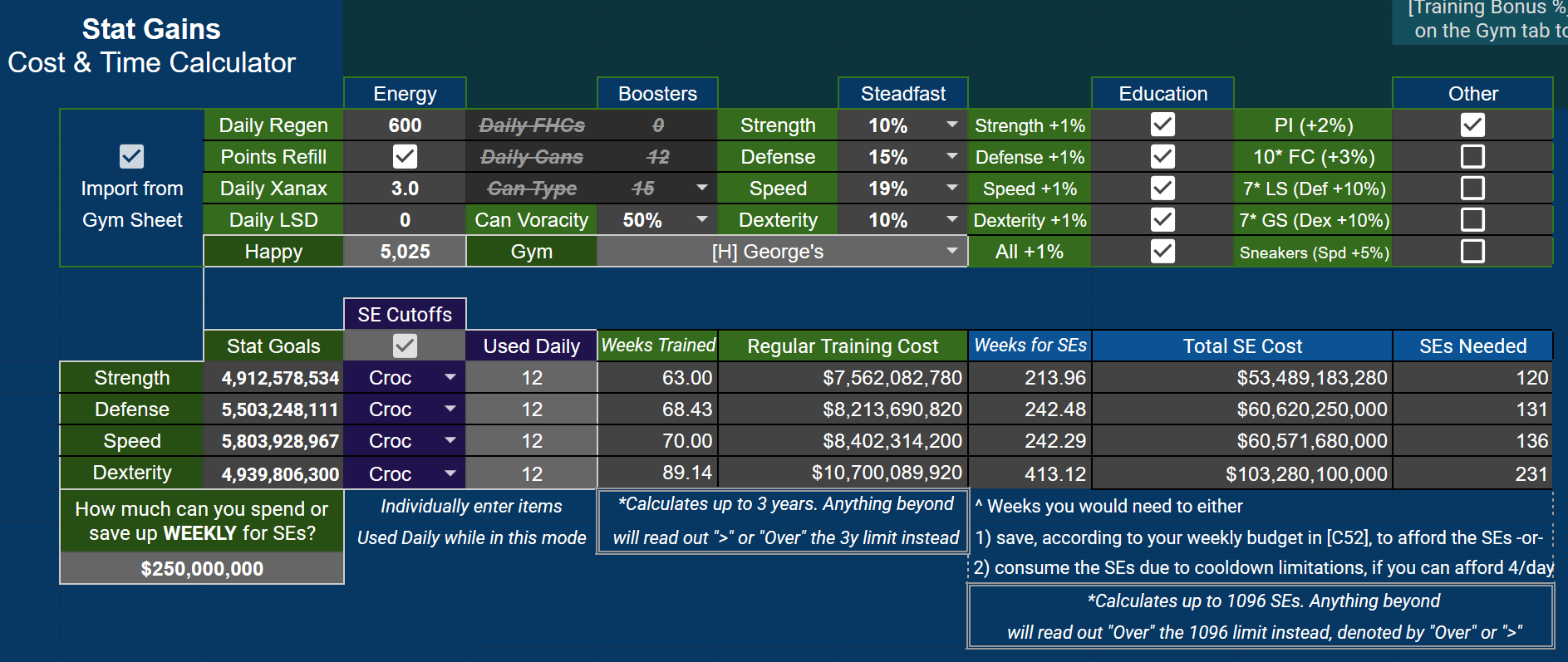
Below the main energy sheet calcs, you can find a quick training vs. SE consumption calculator to check budgeting for SEs against time needed to train.
Keep in mind this is a snapshot of your current situation, and does not take into account training during your SE saving period - but it's a clever reference to return to if you have interest in starting to pound SEs like some other citizens.
These fields have an import checked to pull from the Gym tab, but please note that Happy and Gym choice are both independent, allowing for a bit more customization & comparison. The ability to import SE Cutoffs for specific items is also present for regular training, allowing you to see the specific costs of items utilized up until SEs become more effective.
This sub-area uses iterations up to 1096 days trained (separate from the Gym tab's iterations) as well as 1096 SEs taken to give you estimates. Anything over these numbers will be denoted in fields, as explained in notes in the sub-area.
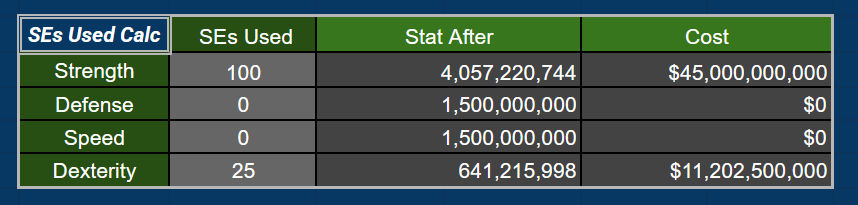
Finally, at the bottom of this tab there is a quick SEs Used Calc for easy referencing regarding your stats after taking an amount of SEs, as well as the associated cost:
----
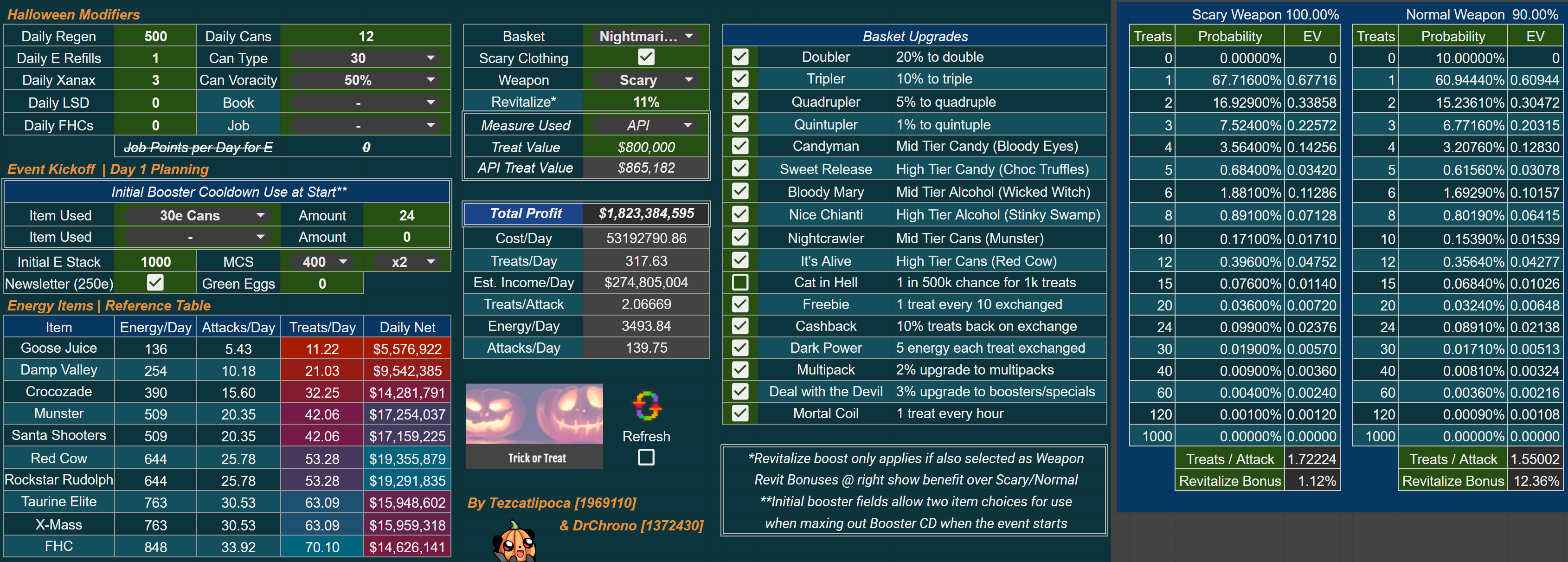
Halloween Sheet
(cheers to Tezcatlipoca for the massive work here!)
Compare every modifier available for Halloween.
Want to see how much better a revitalize weapon would be?
How much more profit using only FHCs would bring, perhaps while running Ugly Energy?
Let loose for the best event (so far).
----
Budget Sheet
Shows stock ROIs and your average income expected over time, alongside other fiscal tools.
Stocks owned are defaulted to import into the sheet. Flip this off to edit the fields yourself.
Manual input fields for both income and expense to the right of this section, which will only add to your totals when their checkboxes are selected.
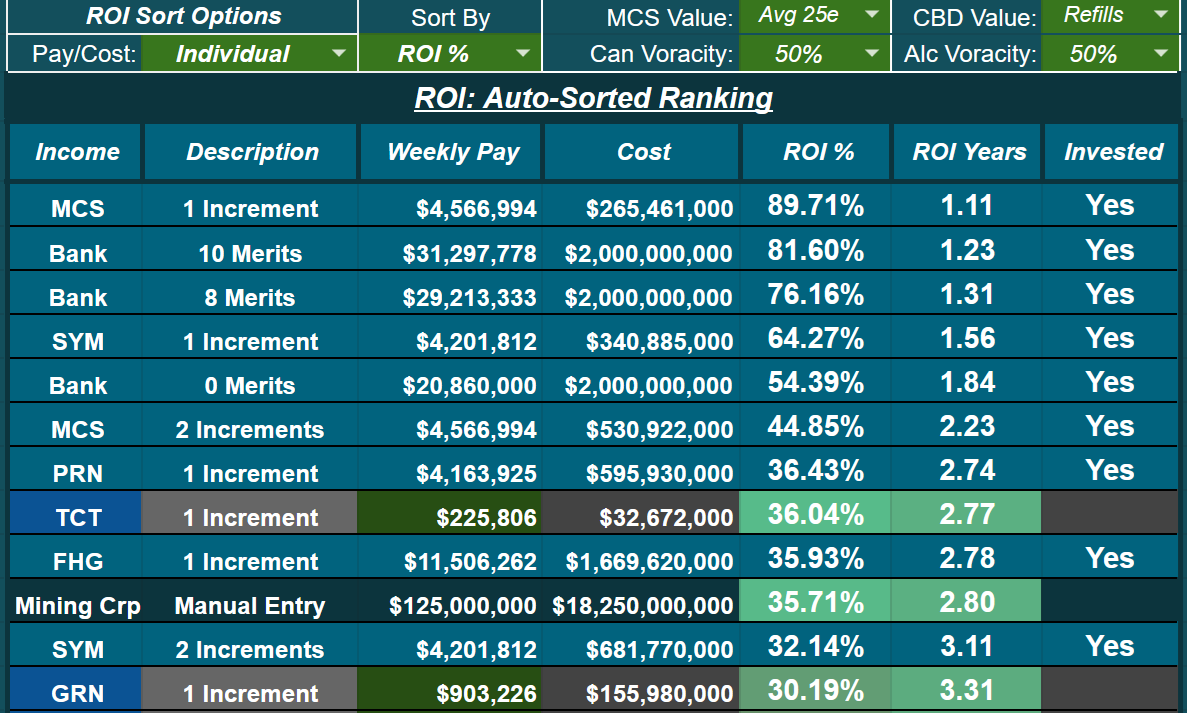
To the right of everything, there is an auto-sorting ROI chart with toggles to view stock pay & costs by up to four
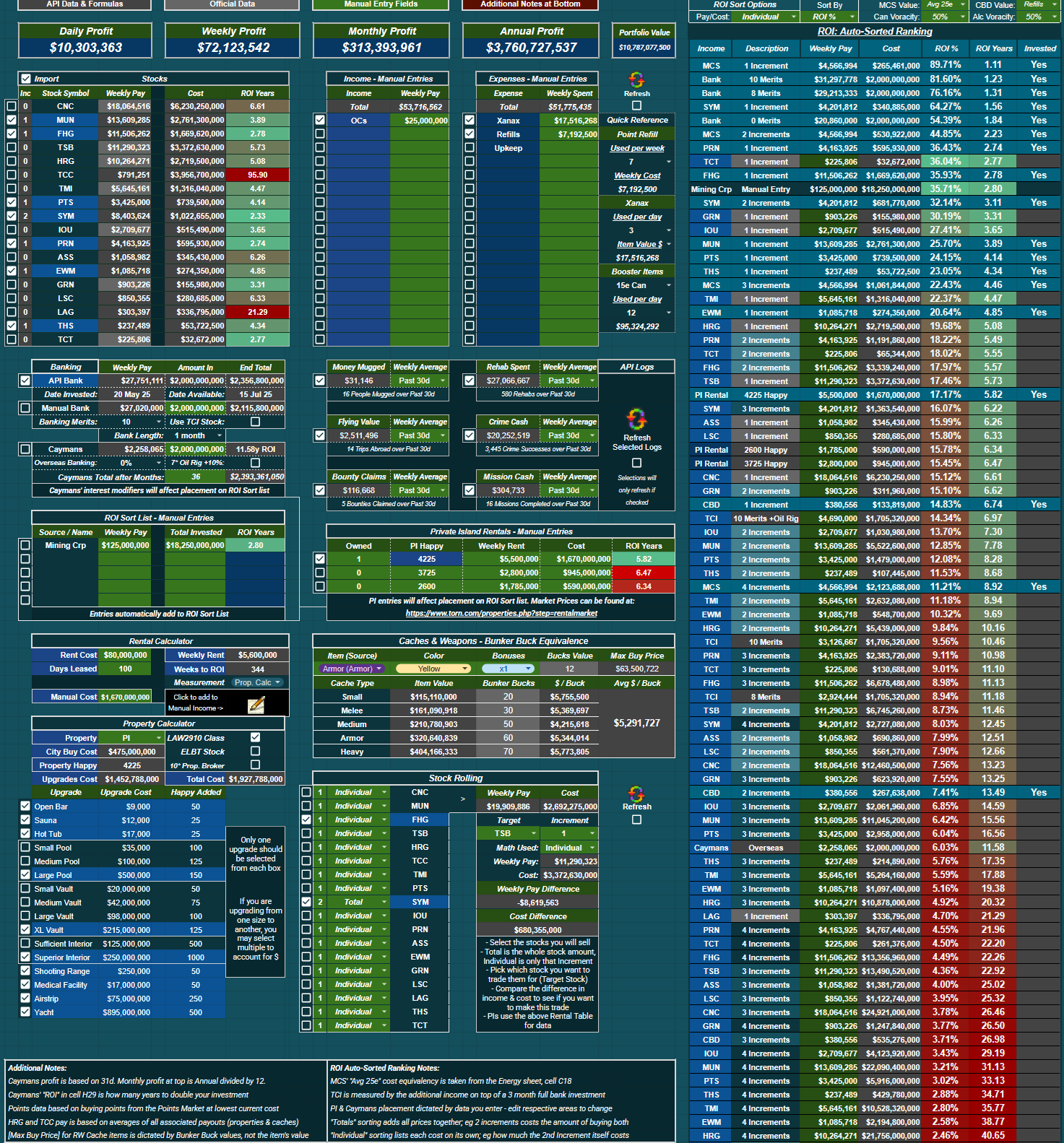
- individual increments (the cost & pay per increment level), or
- total increments (the combination of all levels' pay and costs)
Sorting has multiple options for ordering of investment options - ROI % is set initially. You can choose how you want to measure MCS & CBD via dropdowns, as well. The sheet ships with what I find the most reasonable for valuation.
Caymans, Private Islands, as well as the [ROI Sort List - Manual Entries] in their requisite areas of the Budget tab will sort themselves in this list according to your edits/data entered & modifiers selected.
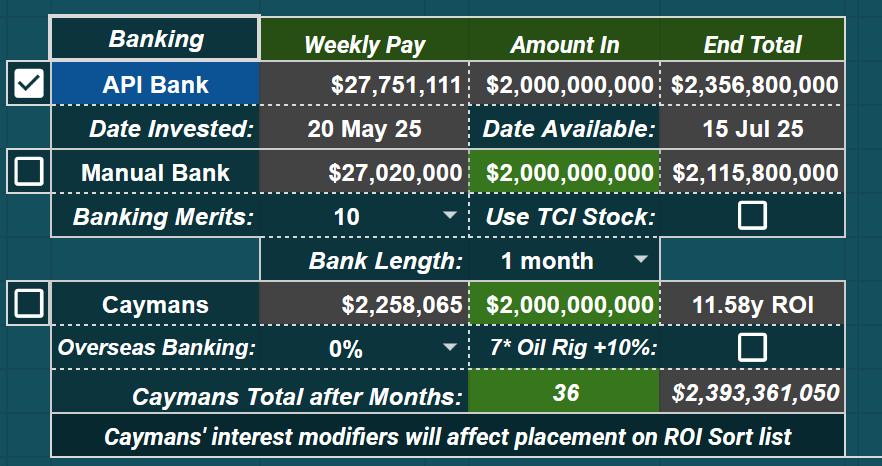
For Banking, a small area under the Stocks table has two different ways of measuring your bank - a fully automated API method, or manual method - as well as a Caymans calculator (thanks Tezcatlipoca for the Caymans formula!)
- For [Manual Bank], insert your [Amount In] & choose your [Banking Merits], check if you're using TCI, and select [Bank Length] for the readout to give you the [End Total] and [Weekly Pay] using the APR of the day from the API
- For [Caymans], note that the [Overseas Banking] faction perk and [7* Oil Rig +10%] selections will affect Cayman's placement on the ROI Auto-Sort list to the right. A value needs to remain in the green cell for Caymans to correctly slot into the ROI sort table
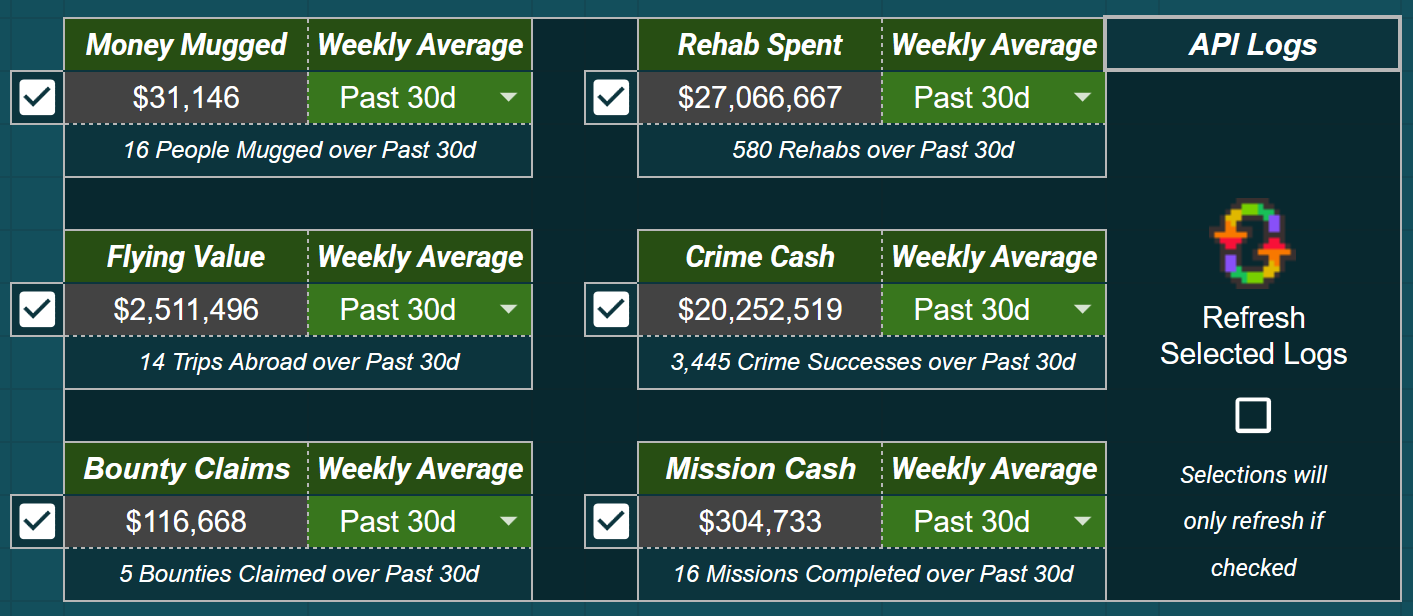
API Logs, to the right of banking and under Manual Entries for Income and Expenses, enables lightweight log parsing. These log categories will only refresh if selected, saving calls if you do not participate in any of the listed activities. When selected, categories refresh as well as either add to Manual Income in cell N8, or add to Manual Expenses in cell R8. You can flip the Weekly Averages to either the past 30 days or just the past week, depending on if you want to narrow to recent changes in approaches or have a longer-term routine you follow.
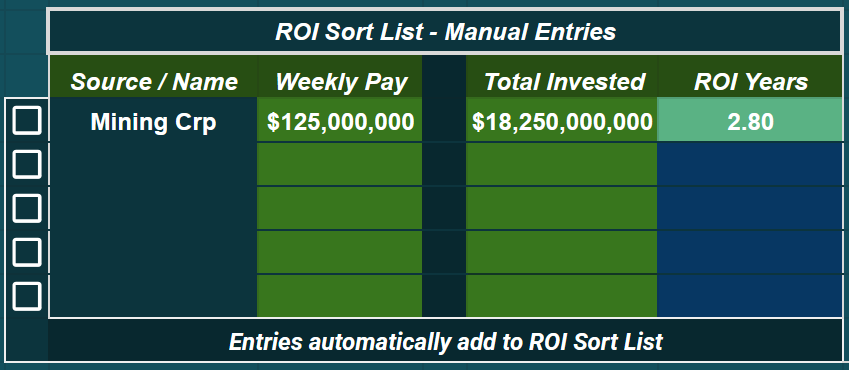
Directly underneath banking lays the ROI Sort List - Manual Entries sub-area.
- Name your source of income, place in the weekly pay, place in the total invested. ROI in Years will read out to the right
- Entries automatically slot into the ROI Auto-Sort table for an easy comparison on investments
- Toggle a row's checkbox to mark it as Invested on the ROI Auto-Sort table
Useful if you invest in companies, faction stock funds, et cetera.
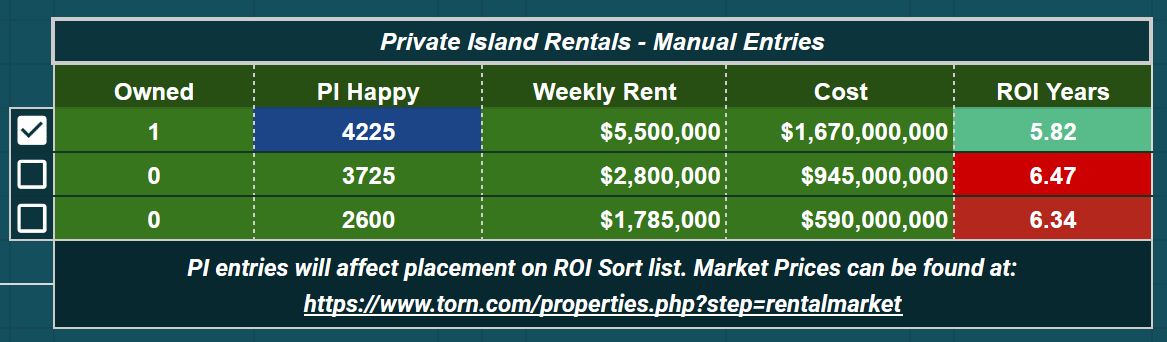
To the right you can find the Private Island Rentals - Manual Entries section, where you can change the number owned, Happy amount, weekly rent, and purchase cost of the given properties, also affecting each PI's placement on the ROI Auto-Sort list. Ticking the checkbox beside each row will add these entries to your Manual Weekly Pay cell in N8 (multiplied by the Owned number), as well as highlight the option on the Auto-Sort list as Invested.
A Property & Rental Calculator exists as well, if you're in the market to buy or rent out a Palace, Castle, or Private Island.
- Select pertinent modifiers for costs as well as property upgrades for happy
- Contains a calc that takes days leased and price of lease and outputs weekly rent
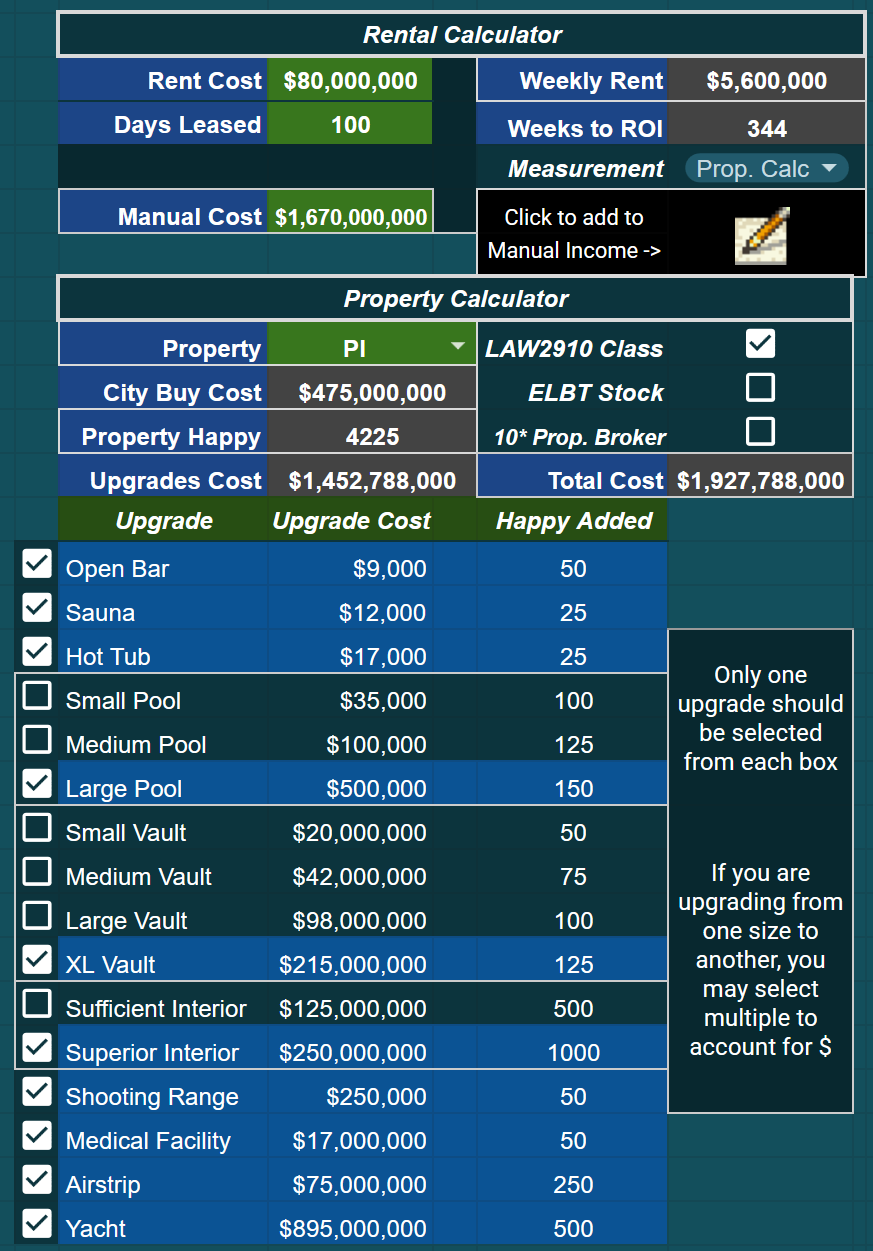
If you would like to add a Rental's output to the Manual Entries fields, the script button in this area will take:
"[Property] - [Property Happy]" & "[Weekly Rent]" to fill out the next empty row in Manual Entries for ease of transposing your rental.
[image: file.garden]
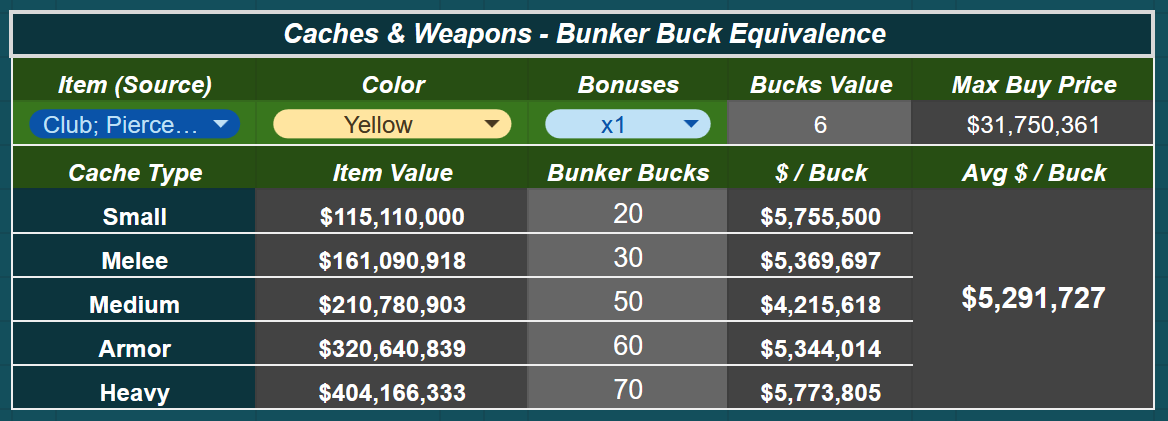
Next up, we have Bunker Bucks calculations.
![[image: file.garden]](https://file.garden/ZdicIpzmo3pLm3pu/Companion%20Guide/CGBudgetTab05.png)
- This sub-area takes each cache's item values as well as Bunker Bucks valuations of item + color + amount of bonuses to read out a "Max Buy Price" if you're looking to buy weapons or armor to turn in for Bunker Bucks
This "flip" should net you caches from the Bunker cheaper than buying a cache off the market (on average).
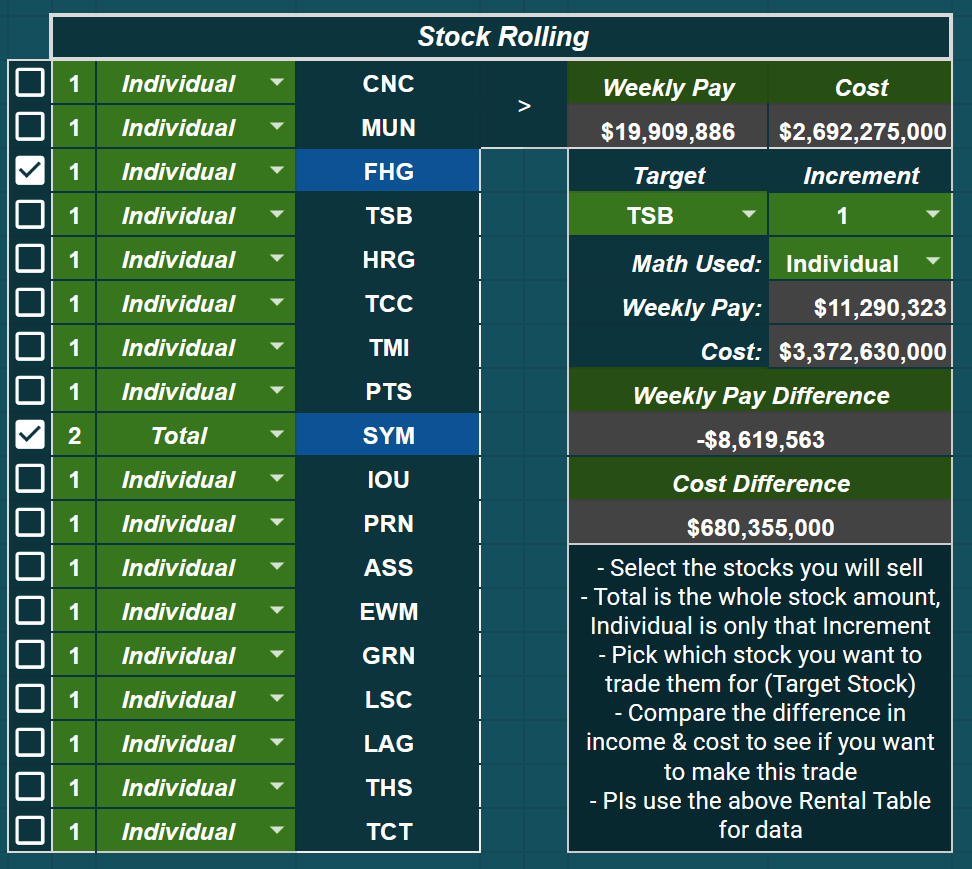
Below this, there lies a Stock Rolling table.
- You can select the stocks, their increment level, and whether a specific stock will use the total block of increments or just the individual selected increment to group up and sell towards a "target stock" that you can choose to the right
- Data readouts on how much extra/short you'll be for the purchase as well as how much your weekly income would change due to the "stock roll" are beneath the target stock selection
- The option to roll stocks into Private Islands is present as well, utilizing Happy, Weekly Pay, and Cost amounts generated from the Private Island Rentals table
Useful when you want to sell easily-reacquired stocks (eg. SYM, ASS, etc) towards more "out of reach" stocks (eg. TSB). Grab the higher cost stock and then target the cheaper stocks used to roll into it, snowballing profit.
----
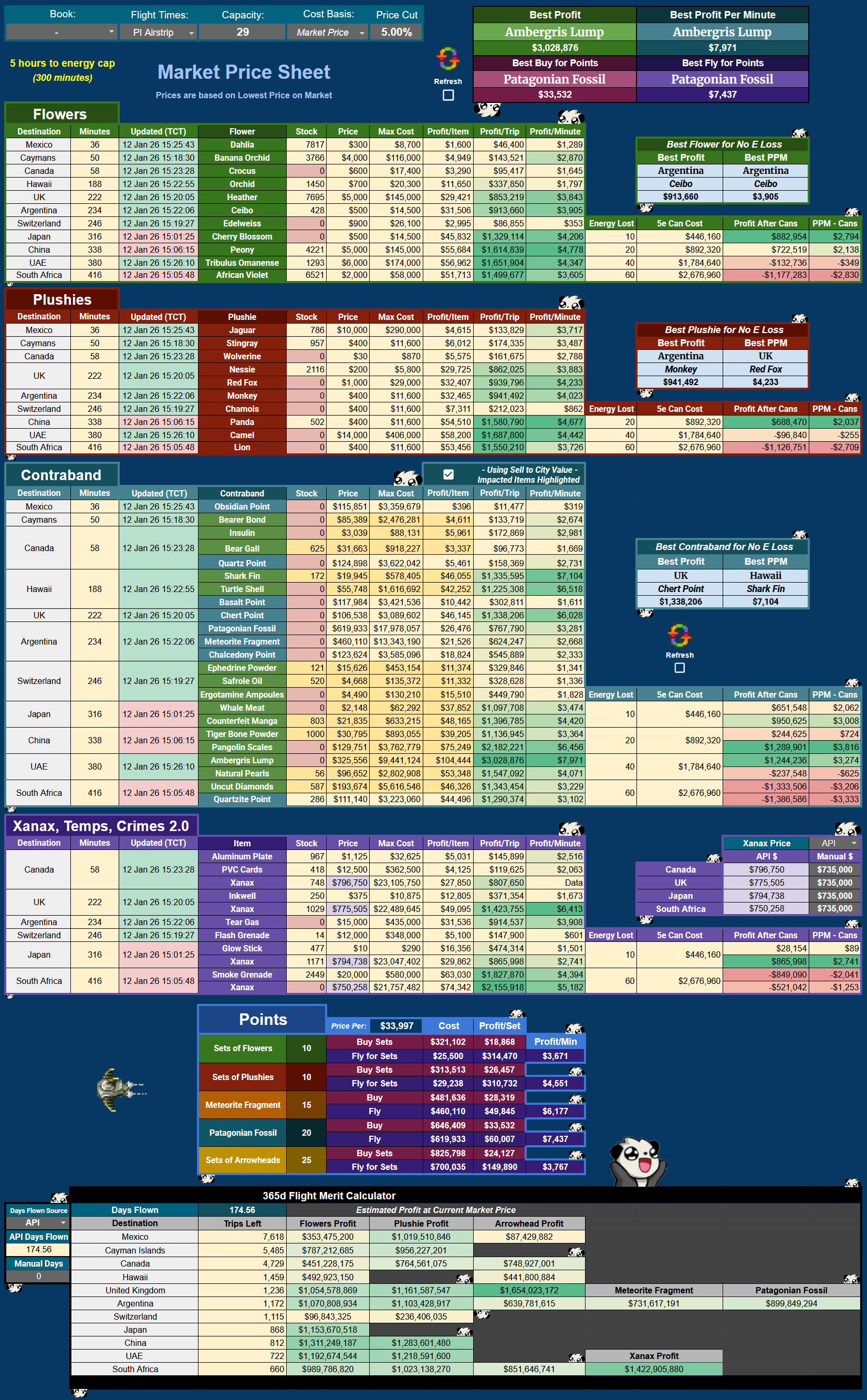
Flying Sheet
Easy compare for flyers.
- Modifiers for Lingerie, WLT, and the two relevant flying books - Ugly Energy (fly longer without e capping) & Mailing Yourself Abroad
- Toggle between Item Value and Market Prices as wanted. By default, Item Values are displayed and pulled via the OnOpen trigger you can install on the Cover tab
- For Market Price view, please use the Refresh button (on PC) or Checkbox (PC & mobile) on the sheet
- Compare buying items for points trading, as well as a simple '365d in the air' merit calc at the bottom
- Utilizes YATA's Overseas Stock API to give you stock abroad with timestamps for the most recent data available
----
Scalp Sheet
Check out commonly requested items that are on the market for immediate deals and glanceable trends.
This sheet is not on the auto-refresh script - has to be manually refreshed, due to the amount of API calls it makes. The ability to exclude item categories is present via checkboxes above each separate category; if you uncheck one, it will grey out and not utilize any API calls, allowing you to focus specific categories you are interested in watching.
Please note:
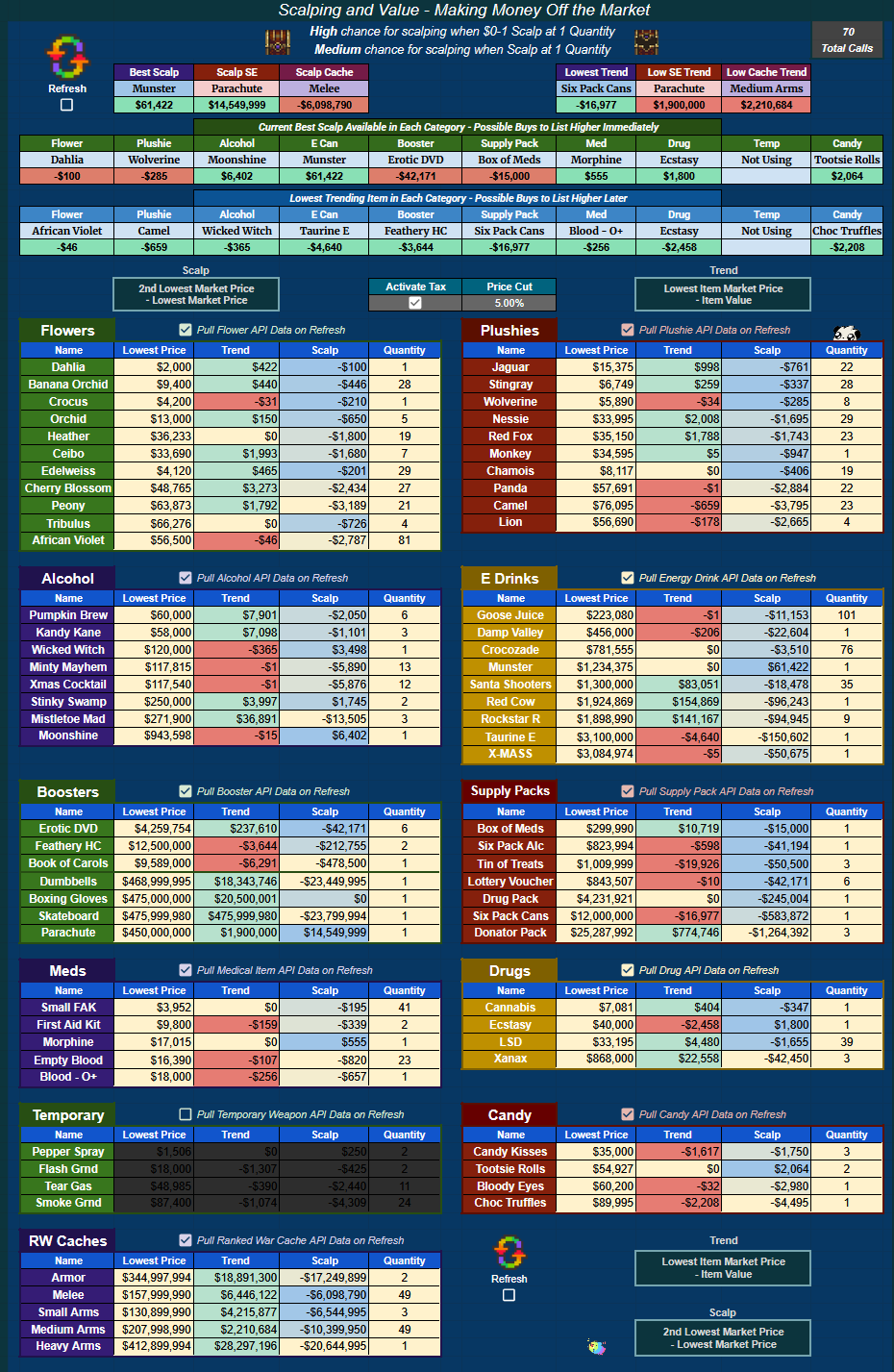
- Scalp cells are [2nd lowest Market Price] - [lowest Market Price] to show what you could theoretically make snatching up that lowest price item and relisting for the higher 2nd price
- Value cells are [Lowest Item Market Price] - [Item Value] to show what items are currently going for on-market compared to the last 24h Item Value generated by Torn. Negative means current market price is below the Item's API value
- Trend cells are [Lowest Item Market Price] - [Item Value] to show the same as Value but in a different context: How is this item moving today, is it gaining in value (positive value) or diminishing (negative value)?
----
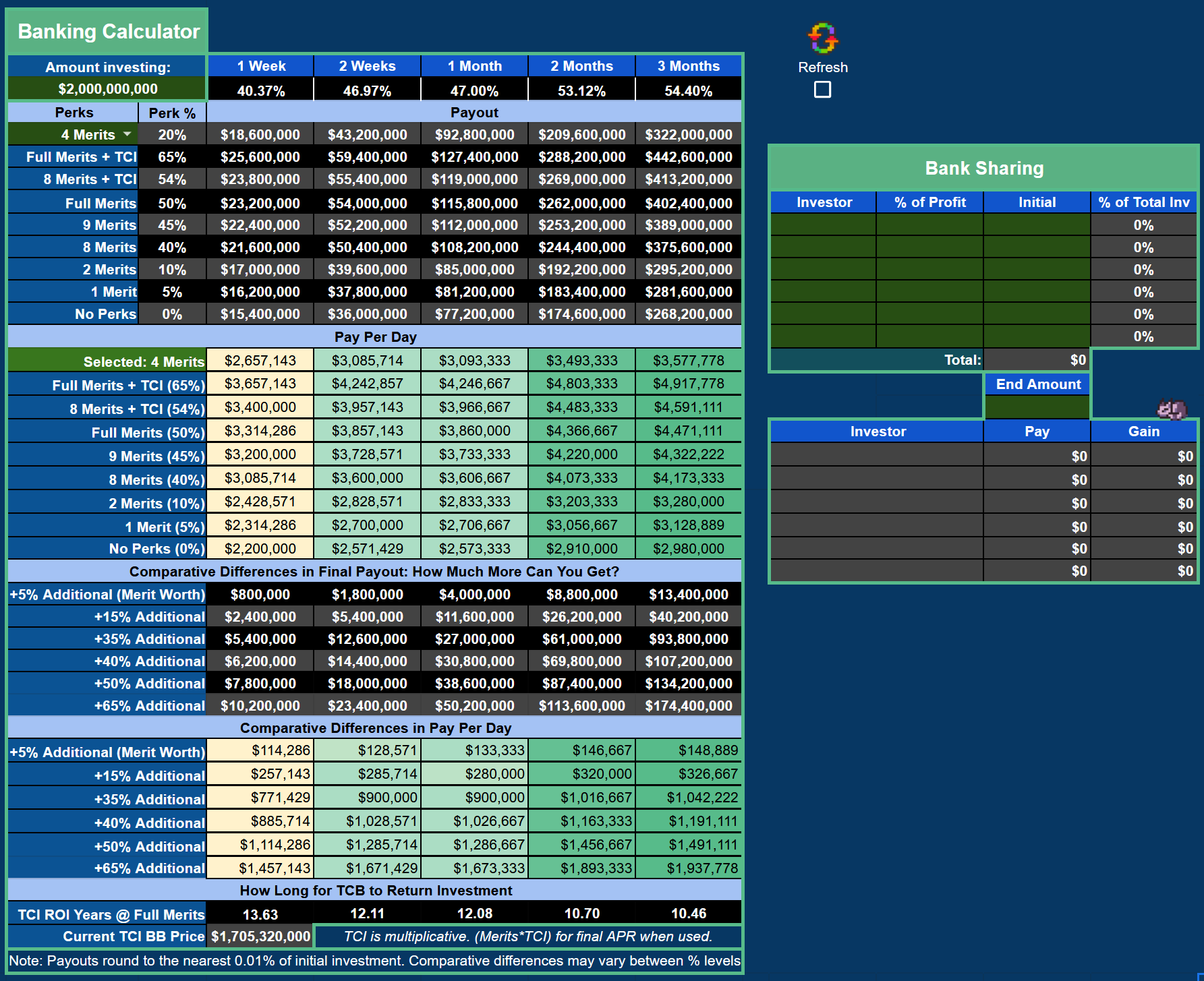
Bank Sheet
- Manually select your bank modifiers and compare interest across the board
- Also includes a bank sharing calculator, with % modifying fields if you do not split evenly for bank shares
- APR percentages at the top (1 Week through 3 Months) are the bank's base rates of the day delivered by Torn's API
Mentions: Omanpx [1906686] · Tezcatlipoca [1969110]
![[image: file.garden]](https://file.garden/ZdicIpzmo3pLm3pu/CEMakeACopy.png)
![[image: file.garden]](https://file.garden/ZdicIpzmo3pLm3pu/CECoverSheet.png)
![[image: media.discordapp.net]](https://media.discordapp.net/attachments/807289551390507089/1098127894015905792/image.png)
![[image: media.discordapp.net]](https://media.discordapp.net/attachments/807289551390507089/1098127945643606016/image.png)