Skip to content
TORNLIFE More

Adding images to your post

Started by Viciously_Grim [2752611] on in Tutorials & Guides.

4 replies · 152 views · thread synced · 7 days ago · View on torn.com
About this thread

Posts archived: 5 / 5 posts (100%) · the total is Torn's reply count + the opening post at the last fetch

Counted by TornLife from the archived posts.

Archived posts
5
Discussion span
→
People posting
1
Likes on archived posts
5
Authority score
52 / 100
Historical score
34 / 100
Story score
36 / 100
Engagement score
52 / 100
Viciously_Grim [2752611]

I keep seeing this question in the forums (due to Duke Dump giveaway) and decided to turn my random nested post into a thread.


Torn now uses HTML instead of BBCode.


Torn also allows direct copy and paste of images into any text editor that supports images such as forum posts and Messages.


This does not mean copy and paste is necessarily a trivial action, especially on mobile. Here are the option and their steps.


Note: If the image is refusing to paste, it may be too big for the Torn image host. Crop the image or resize it using an image editor or ezgif.com until it is small enough that it will paste.


A. Add from image link


1. Click hyperlink (chain) icon on forum editor


2. Paste the image URL (ending with jpg, jpeg, png, gif, or tiff - not sure all are supported but you need the actual image URL)


3. The image is now in your post 


See next post to get the direct image URL from imgur app. Process is similar for other image hosting apps.


Note: UK residents can no longer view images hosted on Imgur. If you do direct link to an image use a different provider.


I personally recommend copying the image directly into the Torn text editor using one of the following options, in order to upload the image to the Torn image host itself.


Warning: Torn image host compress images upon upload. It also has a max image size for uploading (somewhere near 1 full-size screenshot of my phone 😅)


B. Simple copy + paste (PC)


1. On PC, double click to open the image


2. Copy the image using CTRL + C


3. Then paste into Torn text editor using CTRL + V


C. Android with Gallery App


1. If you have gallery just copy the image from there. I think it's under the hamburger icon (3 lines or dots?).


2. Then long click + paste into Torn text box.


D. Android without Gallery App 


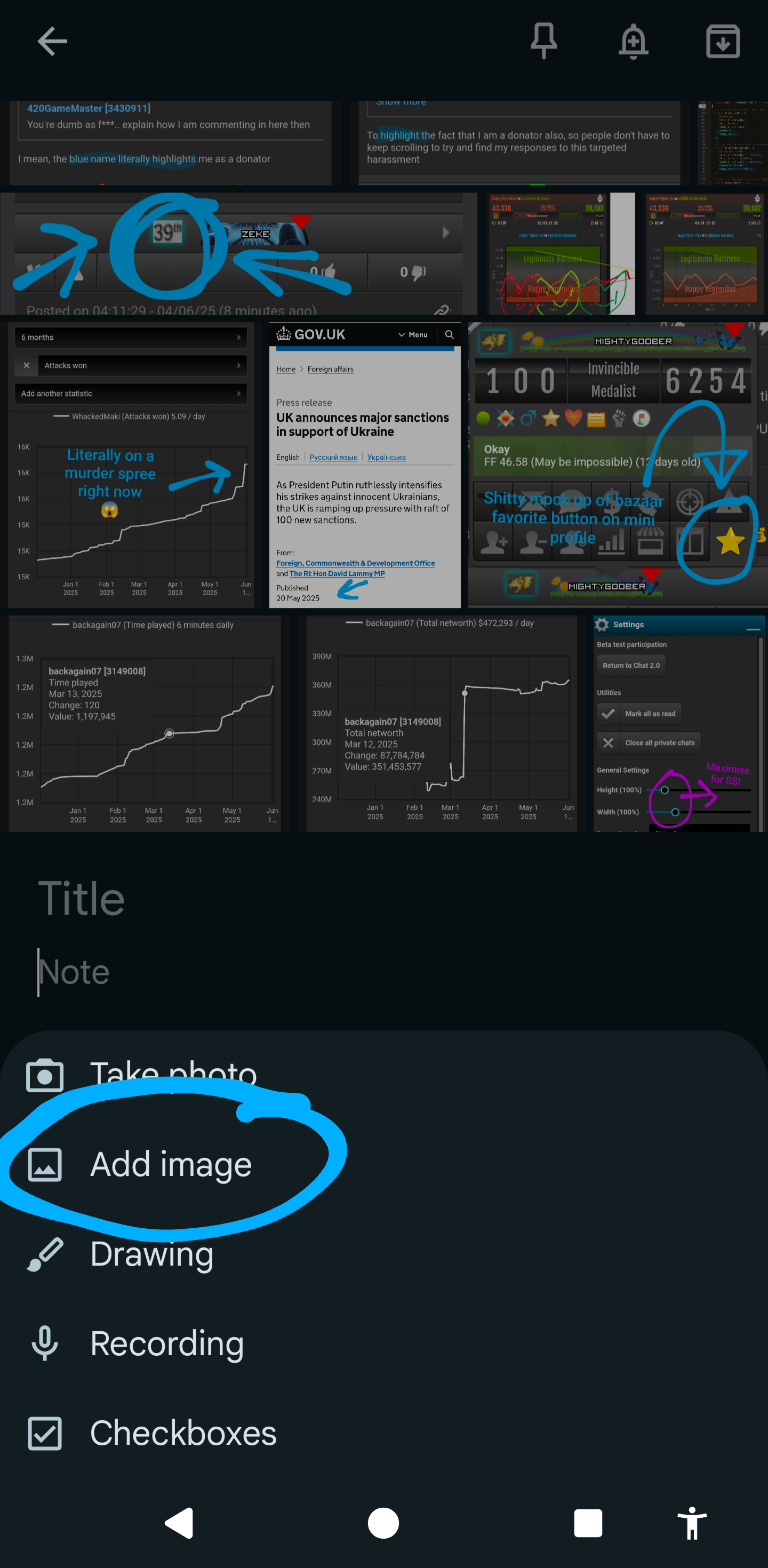
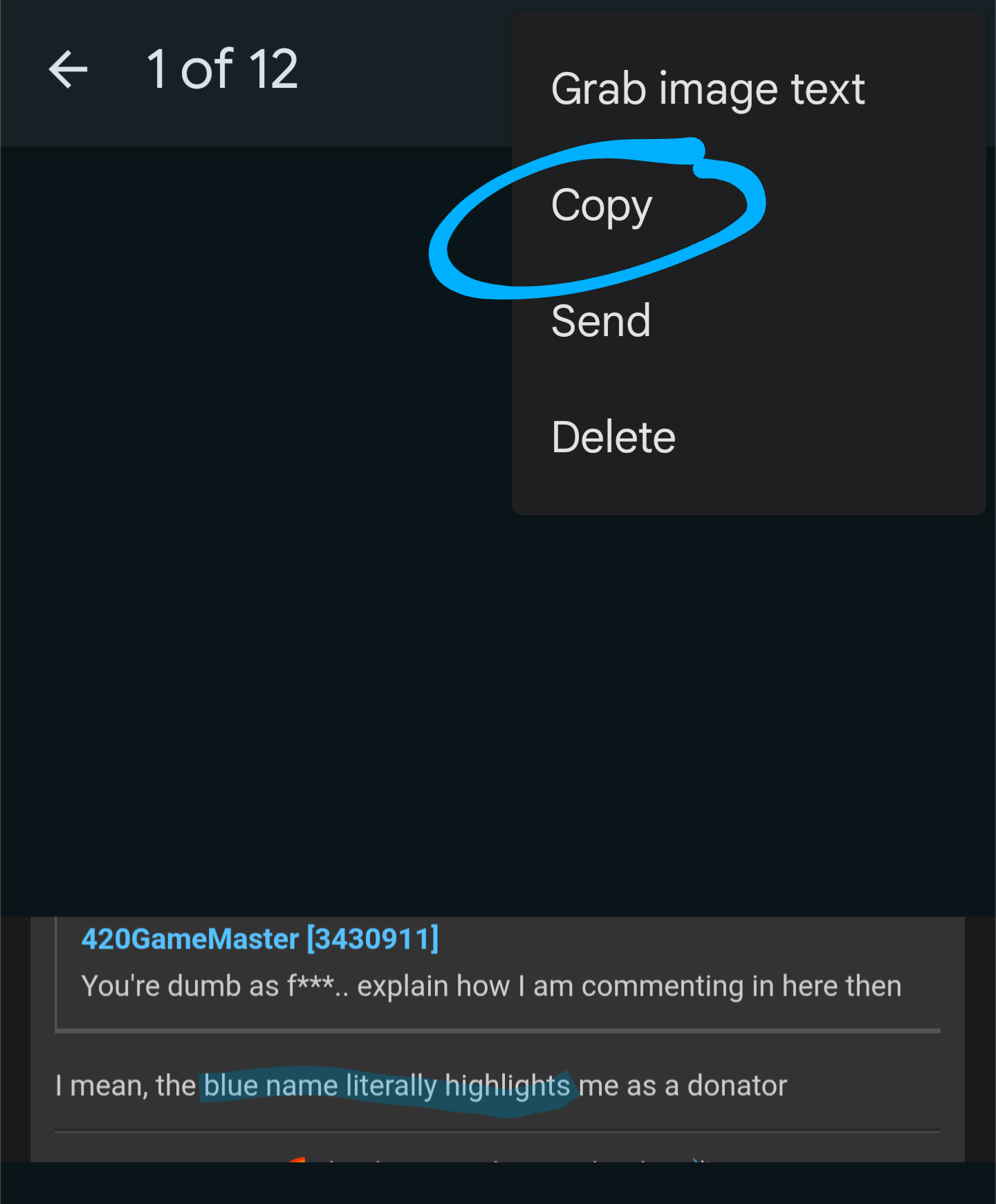
If you don't have Gallery app, you have to put it into Google Keep Notes and copy it form there.


1. Open Keep Notes


2. Open a note
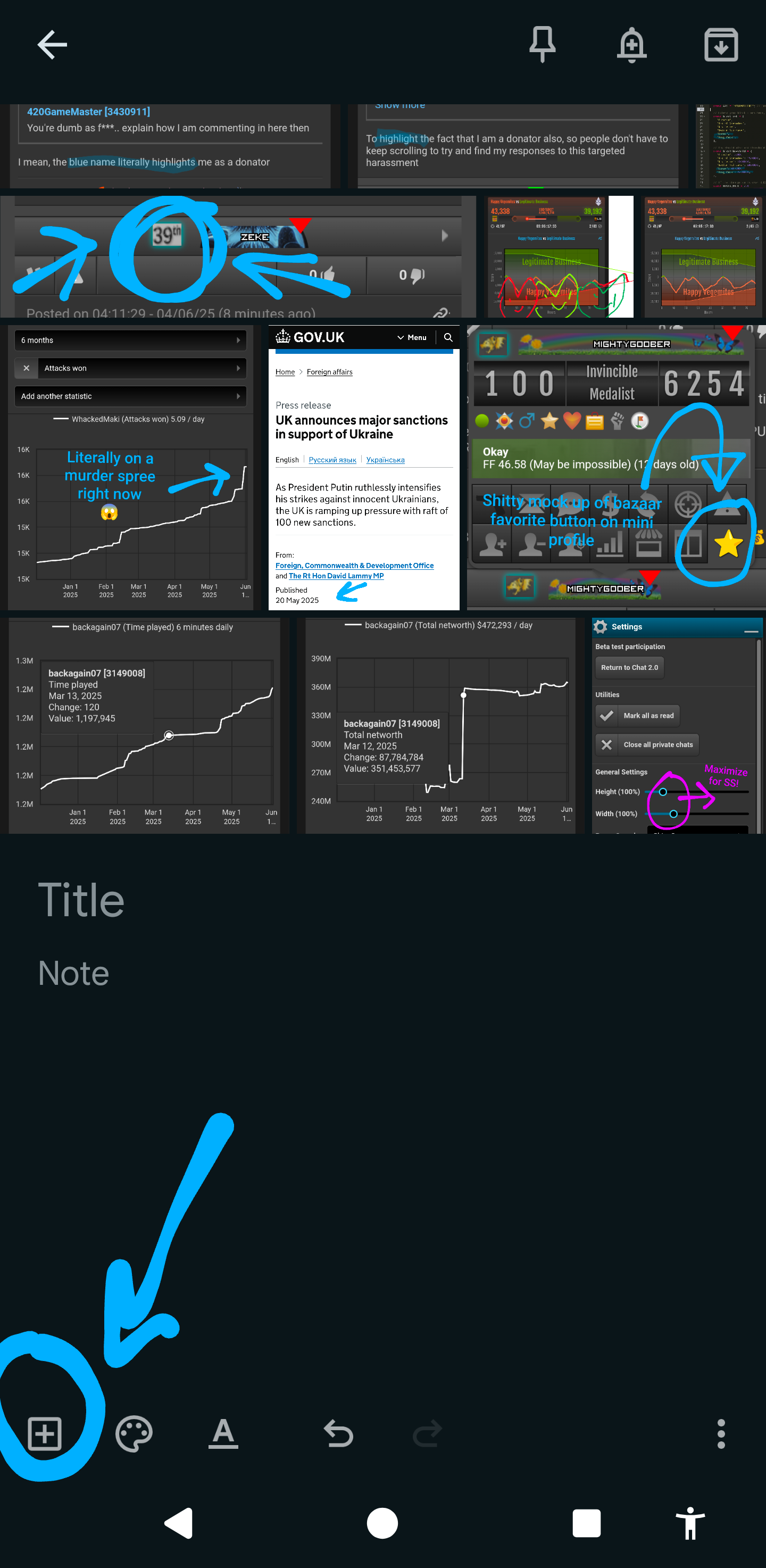


3. Add image to a note


4. Open image + Copy


5. Long click + paste image into Torn text editor


Mentions: Adding images to your post

Viciously_Grim [2752611]

Get Image URL from Imgur App


If have URL to imgur post already, skip to step 3.


1. Open image or post in Imgur app & click the click hamburger icon


2. Copy Permalink


3. Open a web browser go to the copied URL


4. Long click the image and open in new tab


5. Click the URL bar to get the image url


6. Copy the URL of the image itself (ending in png, gif, jpeg, jpg, tiff)


Viciously_Grim [2752611]

Adding a URL to an Image


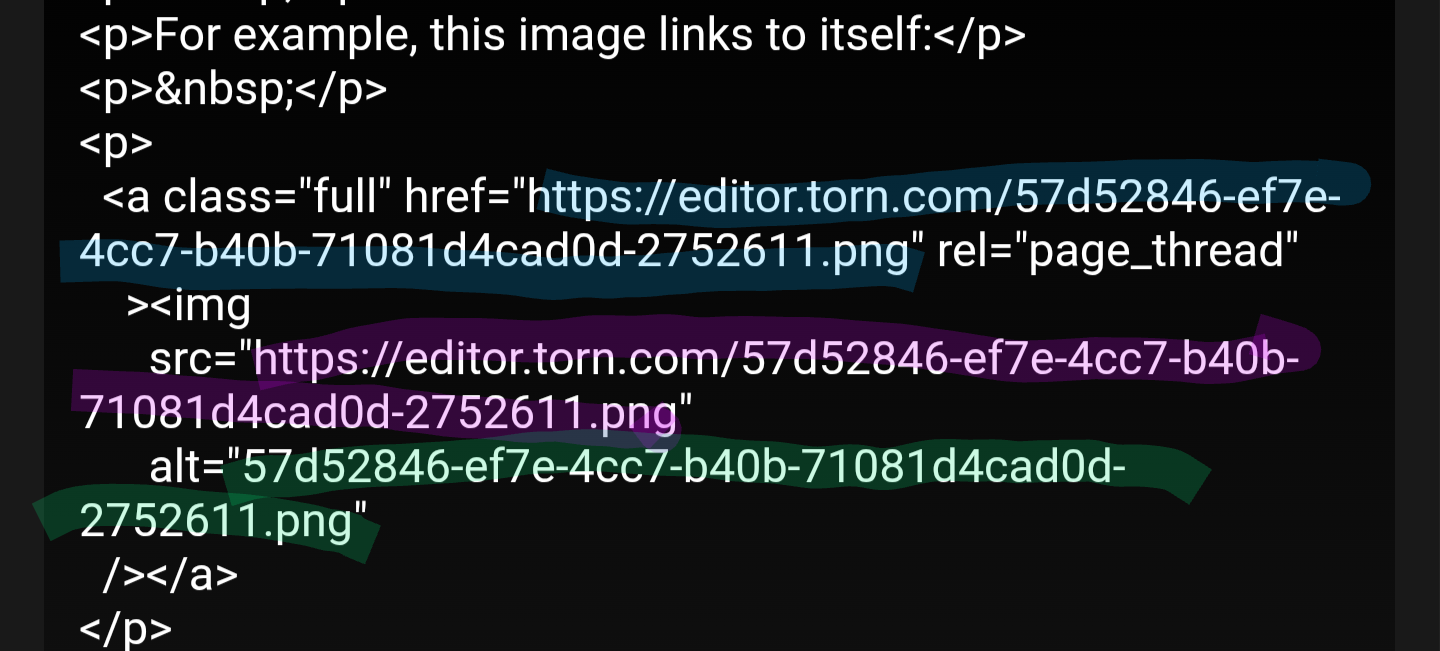
When an image is added to a Torn text editor, the HTML scrubber automatically adds a hyperlink to the image on the image when the text is submitted on Post.


For example, this image links to itself:


When clicking the curly brackets button to get to the HTML editor, the HTML looks like this, with a URL matching the image url:


Blue - URL of hyperlink on image

Purple - Image URL

Green - Image hover text


To add a different hyperlink to the image, there are two options.


A. Use the GUI button


This option must be done immediately after adding the image to the text box (i.e. before clicking Post), as it requires the image to have no hyperlink on it to start. 


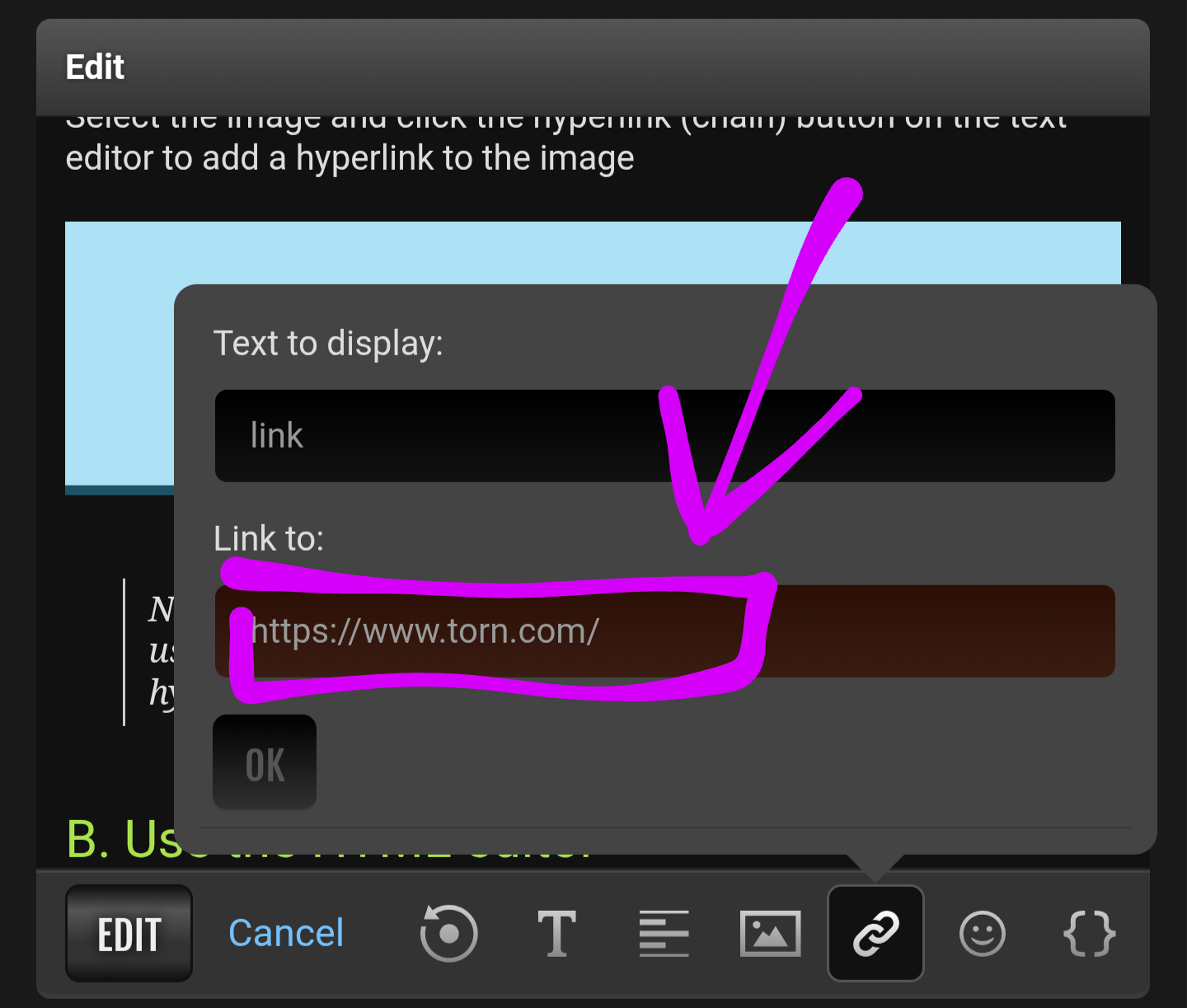
1. Select the image and click the hyperlink (chain) button on the text editor


2. Paste your desired URL into the popup text box (can't show this step sorry) on the purple rectangle


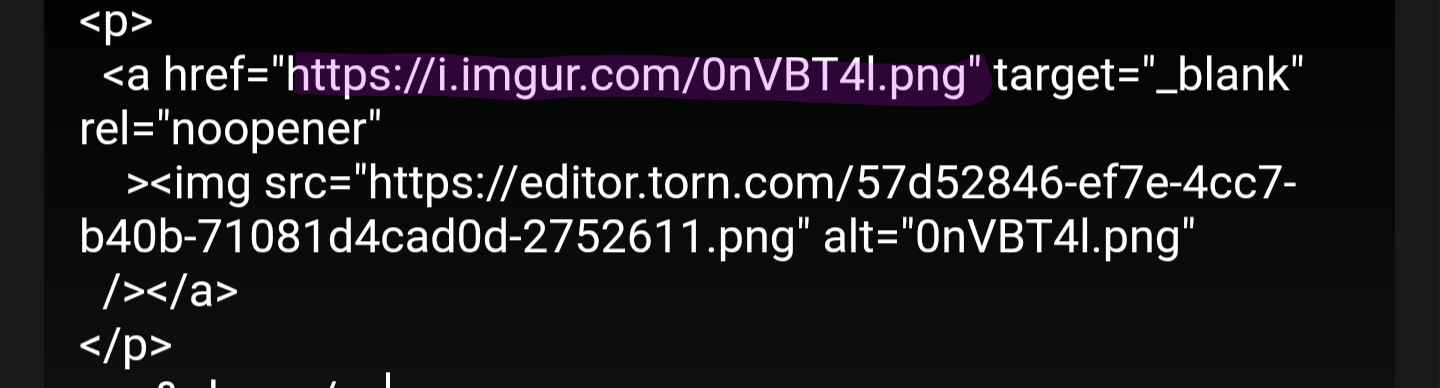
Example URL: https://i.imgur.com/0nVBT4l.png


3. Result:


Note: there is currently a bug where adding a link using the hyperlink button to an image with a hyperlink on it already will remove the image


B. Use the HTML editor


1. Post the text and then click to edit the post.


2. Go into the html editor (curly brackets)


3. Change the URL of the link that was automatically added to the image to your desired URL


4. Result: