I keep seeing this question in the forums (due to Duke Dump giveaway) and decided to turn my random nested post into a thread.
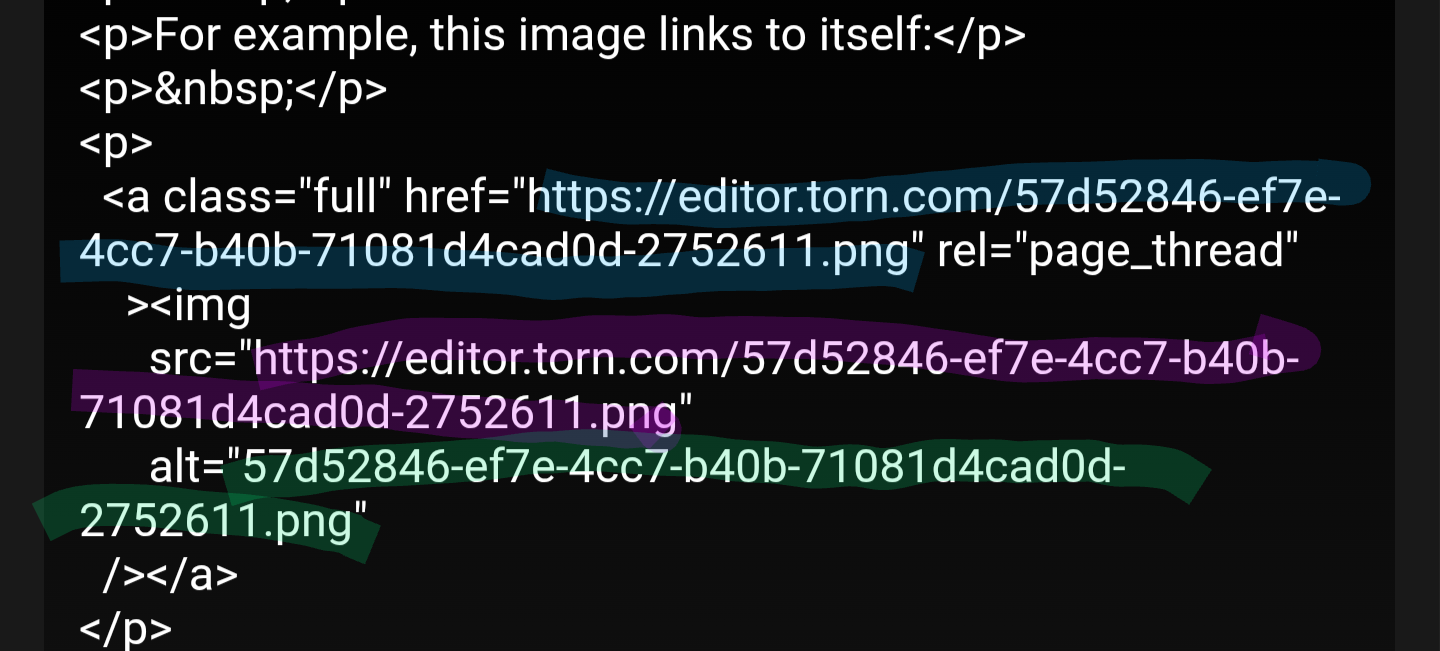
Torn now uses HTML instead of BBCode.
Torn also allows direct copy and paste of images into any text editor that supports images such as forum posts and Messages.
This does not mean copy and paste is necessarily a trivial action, especially on mobile. Here are the option and their steps.
Note: If the image is refusing to paste, it may be too big for the Torn image host. Crop the image or resize it using an image editor or ezgif.com until it is small enough that it will paste.
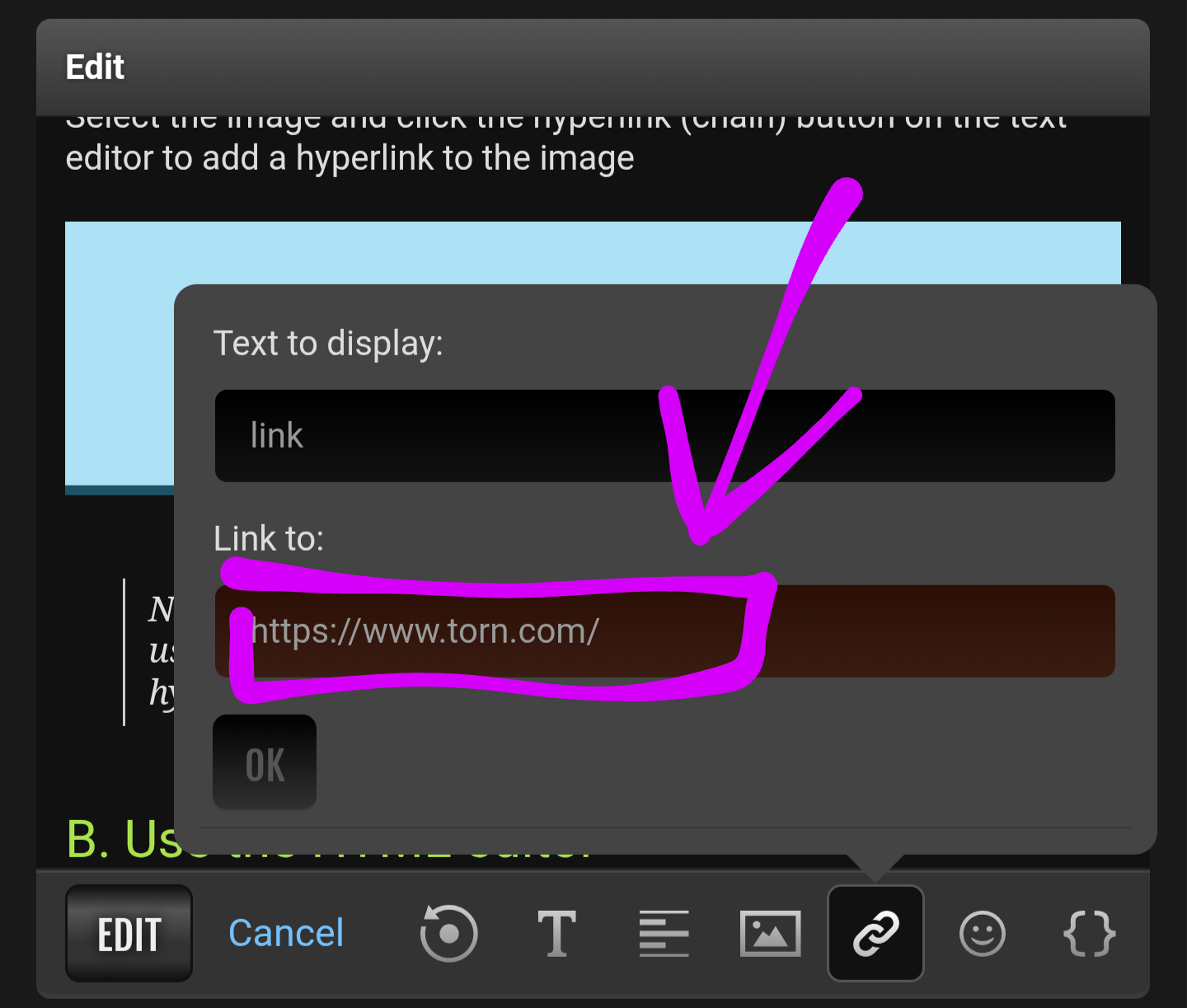
A. Add from image link
1. Click hyperlink (chain) icon on forum editor
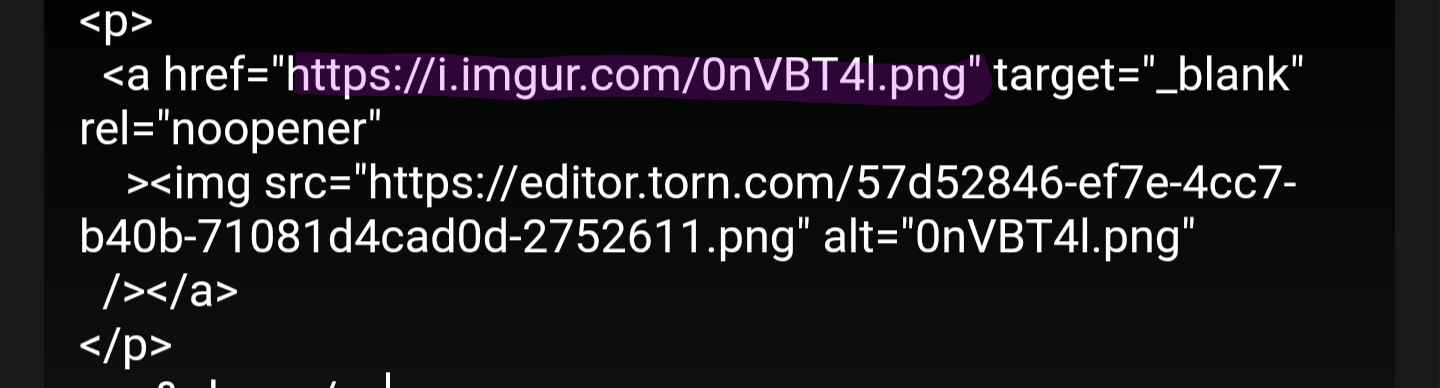
2. Paste the image URL (ending with jpg, jpeg, png, gif, or tiff - not sure all are supported but you need the actual image URL)
3. The image is now in your post
See next post to get the direct image URL from imgur app. Process is similar for other image hosting apps.
Note: UK residents can no longer view images hosted on Imgur. If you do direct link to an image use a different provider.
I personally recommend copying the image directly into the Torn text editor using one of the following options, in order to upload the image to the Torn image host itself.
Warning: Torn image host compress images upon upload. It also has a max image size for uploading (somewhere near 1 full-size screenshot of my phone 😅)
B. Simple copy + paste (PC)
1. On PC, double click to open the image
2. Copy the image using CTRL + C
3. Then paste into Torn text editor using CTRL + V
C. Android with Gallery App
1. If you have gallery just copy the image from there. I think it's under the hamburger icon (3 lines or dots?).
2. Then long click + paste into Torn text box.
D. Android without Gallery App
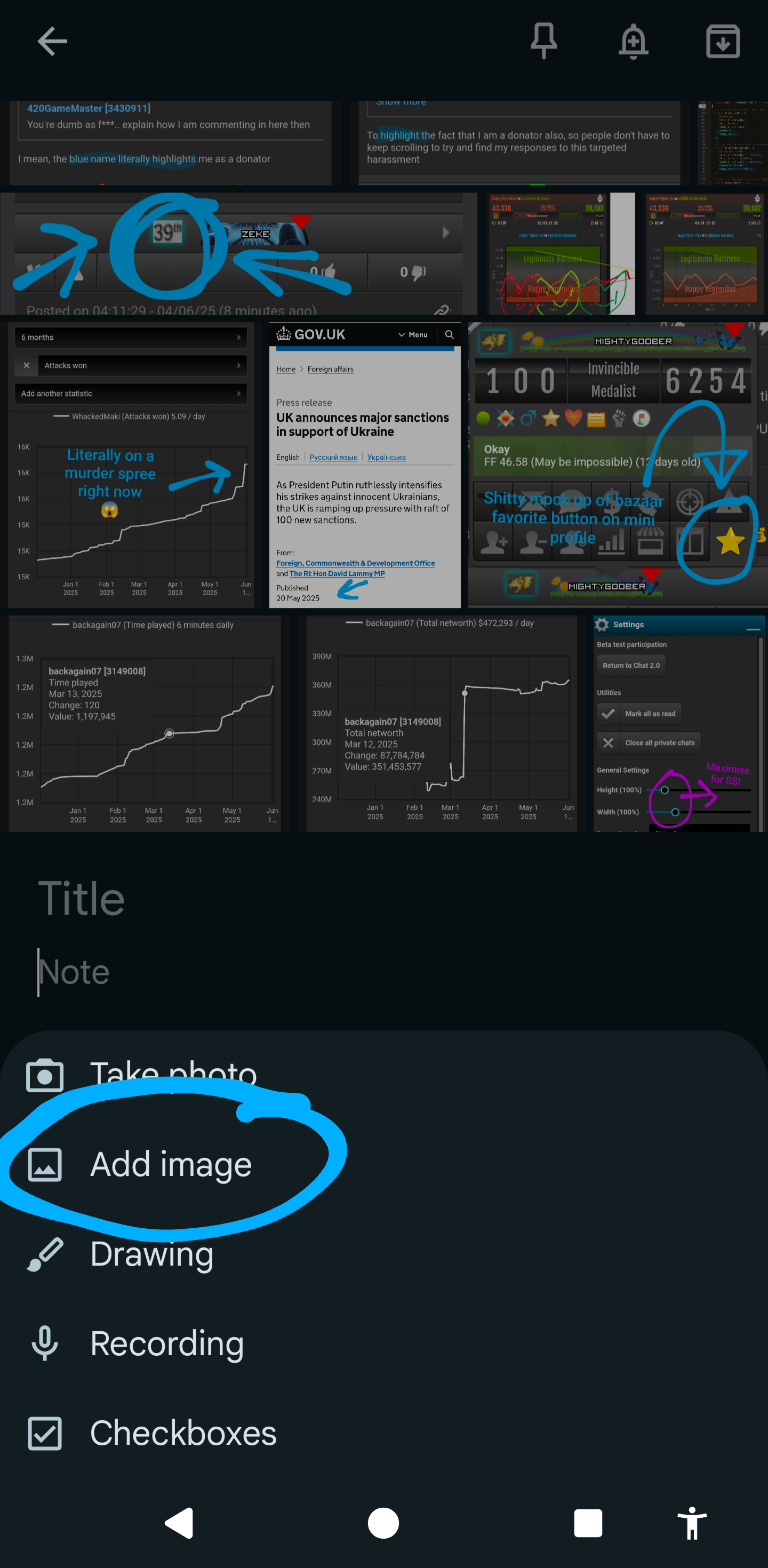
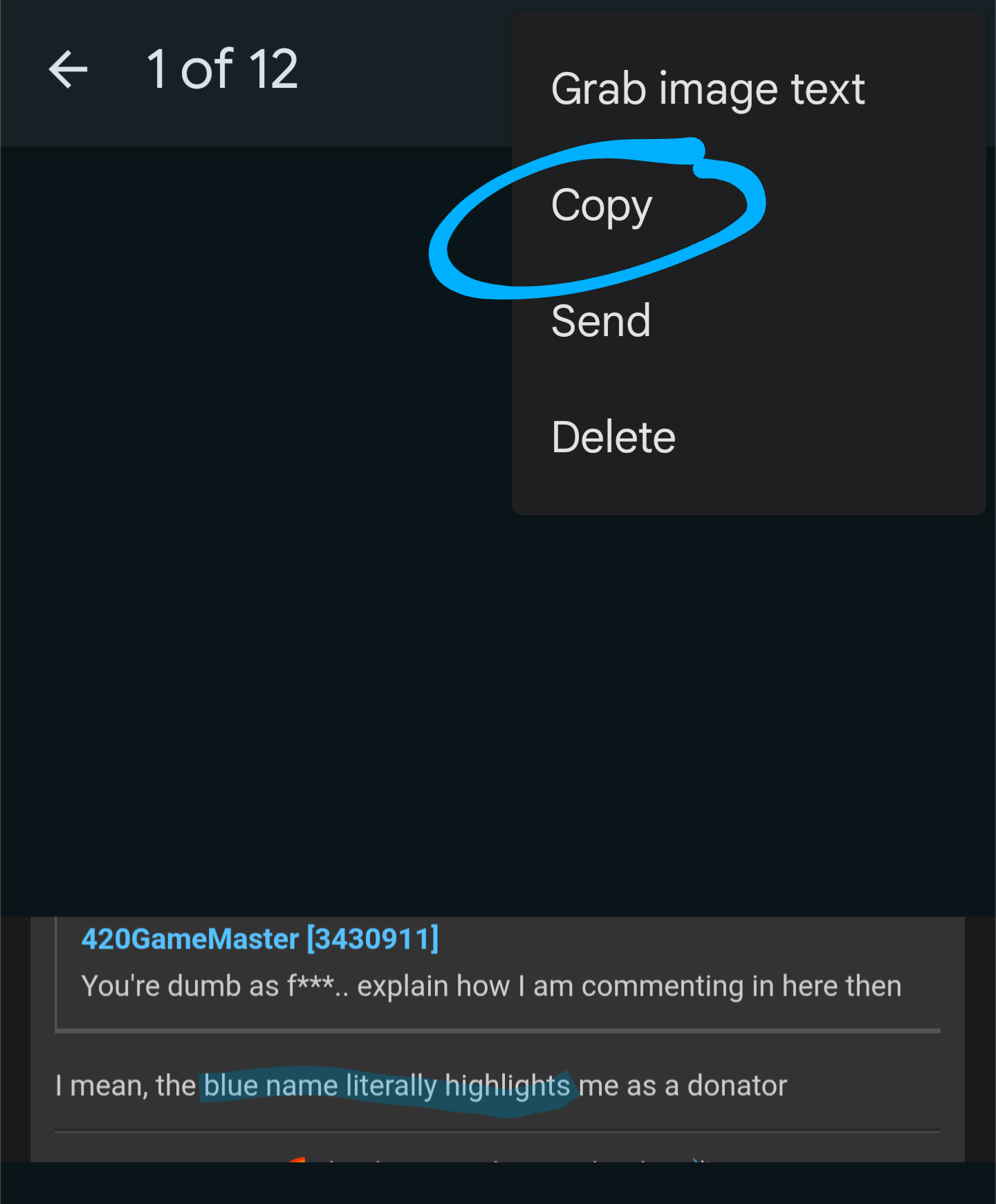
If you don't have Gallery app, you have to put it into Google Keep Notes and copy it form there.
1. Open Keep Notes
2. Open a note
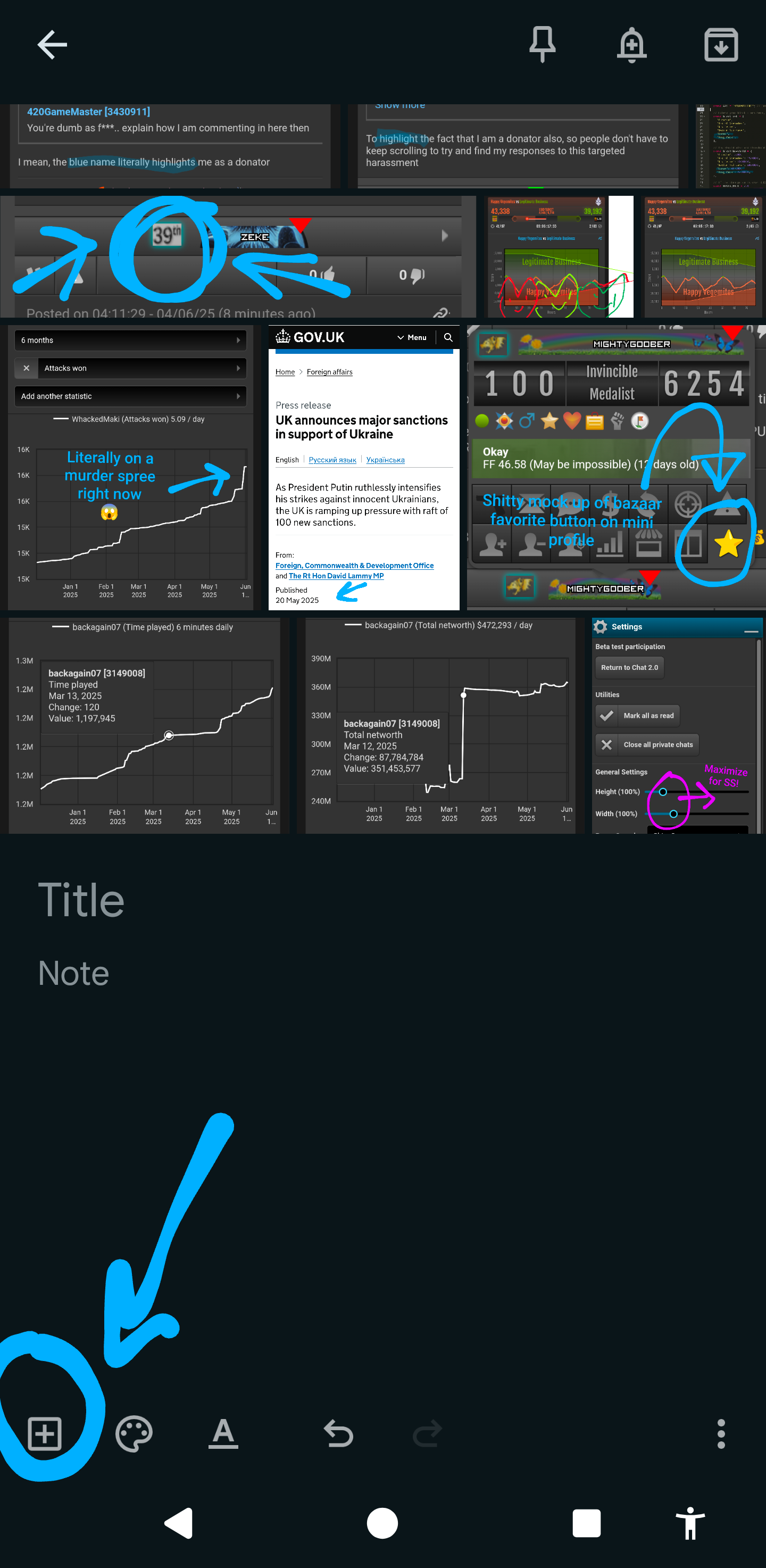
3. Add image to a note
4. Open image + Copy
5. Long click + paste image into Torn text editor
Mentions: Adding images to your post